Magical Piles documentation
How to get your Magic: The Gathering cards into Magical Piles, sort them into piles, file them into numbered boxes, list them on TCGplayer and Mana Pool, record and ship sales, and build, check, and share decks.
Getting started
Magical Piles is a Mac app. Everything you add is stored in a database on your Mac. Nothing is uploaded unless you share a deck or binder, connect Mana Pool, run the AI Deck Advisor with a cloud provider, or turn on the optional TCGTracking shipping step.
What's in the window
The sidebar on the left has one entry per part of the app:
| Section | What it's for |
|---|---|
| Ingest | Add cards: import a CSV file, paste a list, or search for single cards. Review a batch, choose what to keep, price the rest, and export a TCGplayer file. |
| Listings | Every card in your Listed pile — the cards you're selling, on TCGplayer or Mana Pool Seller. Upload to TCGplayer and push to Mana Pool from here. |
| Sales New | Import TCGplayer packing slips and fetch Mana Pool orders Seller, mark cards as sold, see recorded orders with revenue, fees, and net, and (optionally) make shipping labels with TCGTracking Seller. |
| Keeps | Every card in your Keeps pile — the cards you're holding on to. |
| Binders | Named groups of cards, for trade binders, showcases, or anything else. |
| Storage New Collector | The physical boxes, bins, binders, drawers, shelves, and deck boxes your cards live in, with a numbered slot for every chaos-sorted copy. |
| Decks | Your decks, built from physical copies of cards, with format checking. Up to 3 on the free plan; more with Collector. |
A Collector or Seller badge in these docs marks a feature that needs that upgrade (Seller includes everything in Collector). Everything without a badge is free. In the app, a locked action shows a lock icon; click it to open Plans & Pricing.
How do I add my first cards?
- Export your collection from the app you use now (ManaBox, TCGplayer, Dragon Shield, Deckbox, or Moxfield) as a CSV file.
- In Magical Piles, click Ingest in the sidebar, then click Import File — or drag the CSV onto the Ingest screen.
- Magical Piles tells you which format it detected and how many cards are in the file. Choose Review in Ingest to go through them first, or add them straight to a pile.
- If you reviewed them, click Finalize & Save when you're done. Cards you pulled go to Keeps; everything else goes to Listed.
No file? Use Paste List or Search & Add instead.
Concepts
Six ideas explain almost everything Magical Piles does.
Card instances: every copy is its own record
When you import four Lightning Bolts, Magical Piles creates four separate records — one per physical card. Each copy has its own:
- printing (set and collector number)
- condition: Near Mint, Lightly Played, Moderately Played, Heavily Played, or Damaged
- finish: non-foil, foil (✦), or etched foil (◈) New
- language: English, Japanese, German, and so on New
- purchase price, list price, market price, and notes
- date it was added, and which pile it's in
- where it's physically stored, if you've filed it (for example
BOX-7 · 2 · #147) - for a Listed copy, which marketplace it's listed on: TCGplayer or Mana Pool
Copies with the same printing, condition, finish, language, and marketplace are shown together (for example ×4). In list view, click the arrow next to a grouped row to see each copy separately.
Finish and language New
Etched foils and non-English cards are tracked as their own copies everywhere: the card editor, Search & Add, Paste List, imports, exports, and sales matching. In lists, a foil shows ✦ and an etched foil ◈ next to the condition (for example LP ◈), and a non-English copy shows a blue language chip such as JA or ZHS. In grid view, etched copies carry an ◈ Etched label. Etched copies use Scryfall's etched price, not the regular foil price.
To see only some of them, use the Filter menu in the Keeps and Listings toolbar: Finish (All finishes, Non-foil, Foil ✦, Etched foil ◈) and Language (All languages, English, Not English, or one language). In Listings there's a Marketplace filter too.
TCGplayer lists etched foils and each language under their own SKUs. The SKU table currently bundled with the app only has English, non-etched SKUs, so for now non-English and etched copies are listed under no TCGplayer SKU — list them manually on TCGplayer when you upload to TCGplayer. Magical Piles never guesses an English SKU for a Japanese card. Mana Pool doesn't need SKUs, so these copies can be listed there. See How SKU lookup works.
Piles: where a copy is right now
Every copy is in exactly one pile at a time:
Cards move between piles when you finalize an Ingest review, add a card to a deck or remove it, confirm a packing slip, or change the Pile setting on a card (see Edit a single card).
Binders: groups that don't move cards
A binder is a named list of specific copies. Adding a card to a binder does not change its pile — a card can be in your Trade Binder and still be in Keeps or Listed. Deleting a binder never deletes the cards in it.
Storage locations: where a copy physically sits New
A pile says what a copy is for (keeping, selling, a deck, sold). A storage location says where it physically is: Box 7, row 2, slot 147. The two are separate — a Listed card and a Keeps card can sit in the same box. Each copy is in at most one storage location, and it doesn't have to be in one at all. See Storage & chaos sorting.
Import batches
Every import — a finalized Ingest review, a direct import, a pasted list, or cards added with Search & Add — is recorded as an import batch with its filename, source, date, and row count. Each copy remembers which batch it came from. The date is what you see as Added to Collection on a card and what Date Added sorting uses.
Prices
| Price | Where it comes from |
|---|---|
| Purchase price | What you paid: your import file (for example ManaBox's Purchase price column), what you type in Search & Add, or what you set in the card editor. Used as the cost when Sales estimates your net on an order. TCGplayer CSV imports leave it empty, because the file's price is a listing price, not what you paid. |
| Live price | Fetched from Scryfall in US dollars. Foil copies use Scryfall's foil price, and etched copies its etched price. Shown in green. |
| List price New | What a Listed copy is for sale at. Set by the rounded price when you finalize an Ingest review, by Set List Price…, or in the card editor. It's the price sent to TCGplayer and Mana Pool. |
| Market price | A per-copy field you can set in the card editor, stamped with the date you set or change it. Cards imported directly from a TCGplayer CSV (to either pile) get it from the file's TCG Marketplace Price — your list price. |
Importing
Everything starts in Ingest, which offers three ways in: Import File, Paste List, and Search & Add.
Which CSV formats are supported?
Magical Piles recognizes the format from the file's header row. You don't need to choose it.
| Format | Recognized by | Columns used | Direct import goes to |
|---|---|---|---|
| ManaBox | Scryfall ID | Name, Quantity, Foil, Condition, Purchase price, Scryfall ID, Set code, Set name, Collector number, Rarity (all required); Language | Keeps (Review in Ingest is suggested) |
| TCGplayer | TCGplayer Id | Product Name, Condition, and Total Quantity (or Add to Quantity if there's no Total Quantity column) (required); TCGplayer Id, Set Name, Number, TCG Marketplace Price, Rarity | Listed |
| Dragon Shield | Folder Name | Card Name, Quantity, Condition (required); Printing or Foil, Language, Set Code, Card Number, My Price or Price Bought | Keeps |
| Deckbox | Tradelist Count | Name, Count, Condition (required); Foil, Language, Edition, Edition Code, Card Number, Purchase Price | Keeps |
| Moxfield collection | Edtion (Moxfield's spelling), or Edition plus Collector Number | Name, Count (required); Condition, Foil, Language, Edition, Collector Number, Purchase Price | Keeps |
Finish and language New: a foil column that says etched (ManaBox's Foil, Dragon Shield's Printing, Moxfield's Foil) imports an etched copy, and a Language column (a code like ja or a name like Japanese) sets the language. Files without one import as English.
Conditions are translated to Magical Piles' five conditions. For example, Dragon Shield's Excellent and Good become Lightly Played, Played becomes Moderately Played, and Poor becomes Damaged. Anything Magical Piles can't read is treated as Near Mint, so check conditions after importing from an unfamiliar source.
For TCGplayer files:
- The quantity comes from Total Quantity — what you have on hand. Rows with a quantity of 0 (catalog rows you have none of) are skipped.
- The TCGplayer Id (a SKU) is looked up in the bundled SKU database to find the exact printing. Set Name and Number help when it isn't found.
- Foil and language are read from the condition (for example Near Mint Foil or Lightly Played - Japanese). A product name ending in (Foil Etched) means an etched copy.
- TCG Marketplace Price is your list price, so it's saved as the copy's market price, not its purchase price. Purchase price stays empty. In an Ingest review, the list price shows in the Purchase column and is used as the rounding basis, but it's still saved as the market price.
Already selling on TCGplayer and want Magical Piles to match your store? Use Import TCGplayer Inventory instead of a plain import, so copies you already have aren't added twice.
How do I import a CSV file?
- Click Ingest in the sidebar.
- Click Import File and choose the CSV, or drag the file anywhere onto the Ingest screen.
- A sheet shows the detected format and card count and asks Where should these go?
- Review in Ingest opens the Ingest review so you can choose keeps, set prices, and export.
- Add to Keeps or Add to Listed (for ManaBox files, Add directly to Keeps) skips the review and adds every card to that pile.
- For a TCGplayer file, the sheet also offers Import as TCGplayer Inventory… Seller, which adds only the copies you don't already have Listed. See Import TCGplayer Inventory.
The direct-import pile depends on the format: TCGplayer files go to Listed, everything else goes to Keeps. To split a file between piles, use Review in Ingest.
For every format except ManaBox, each row is matched to a card on Scryfall — by exact printing first when the file identifies one (a TCGplayer SKU found in the SKU database), then by set and collector number, then name and set, then (for files that give a set name, such as Deckbox and TCGplayer) by looking up the set, and finally by card name alone. Rows that can't be matched are skipped, and the finished sheet tells you how many. ManaBox files already include Scryfall IDs, so they skip this step.
How do I add cards from a text list?
- In Ingest, click Paste List.
- Pick the Condition, Finish, and Language for the whole list. Markers on a line override them (below).
- Paste your list, one card per line, and click Parse. The preview marks each line as recognized or unrecognized.
- Click Add N Cards to Collection, then choose Add to Keeps or Review in Ingest first.
These line styles are accepted:
4 Lightning Bolt
2x Sol Ring (C21) 263
1 Black Lotus (LEA) 232
SB: 3 Counterspell
1 Sol Ring (CMM) 400 *E*
1 Lightning Bolt (STA) 42 *F* [JA]
// lines starting with two slashes are ignored
On a line, *F* marks a foil, *E* an etched foil, and [JA] (or [Japanese]) the language. The preview shows the finish badge and language chip for each line.
How do I add a single card?
- In Ingest, click Search & Add.
- Type a card name and pick it from the results.
- Choose the exact printing. Hover a printing to preview its image.
- Set Condition, Finish, Language, Quantity, and optionally Purchase Price, then click Add to Keeps. Changing the finish fills in Scryfall's price for that finish.
The sheet stays open, so you can keep adding cards; it shows how many you've added.
How do I review a batch before saving it?
The Ingest review is where a new batch of cards gets split into keeps and listings. It's built for sorting a freshly scanned box.
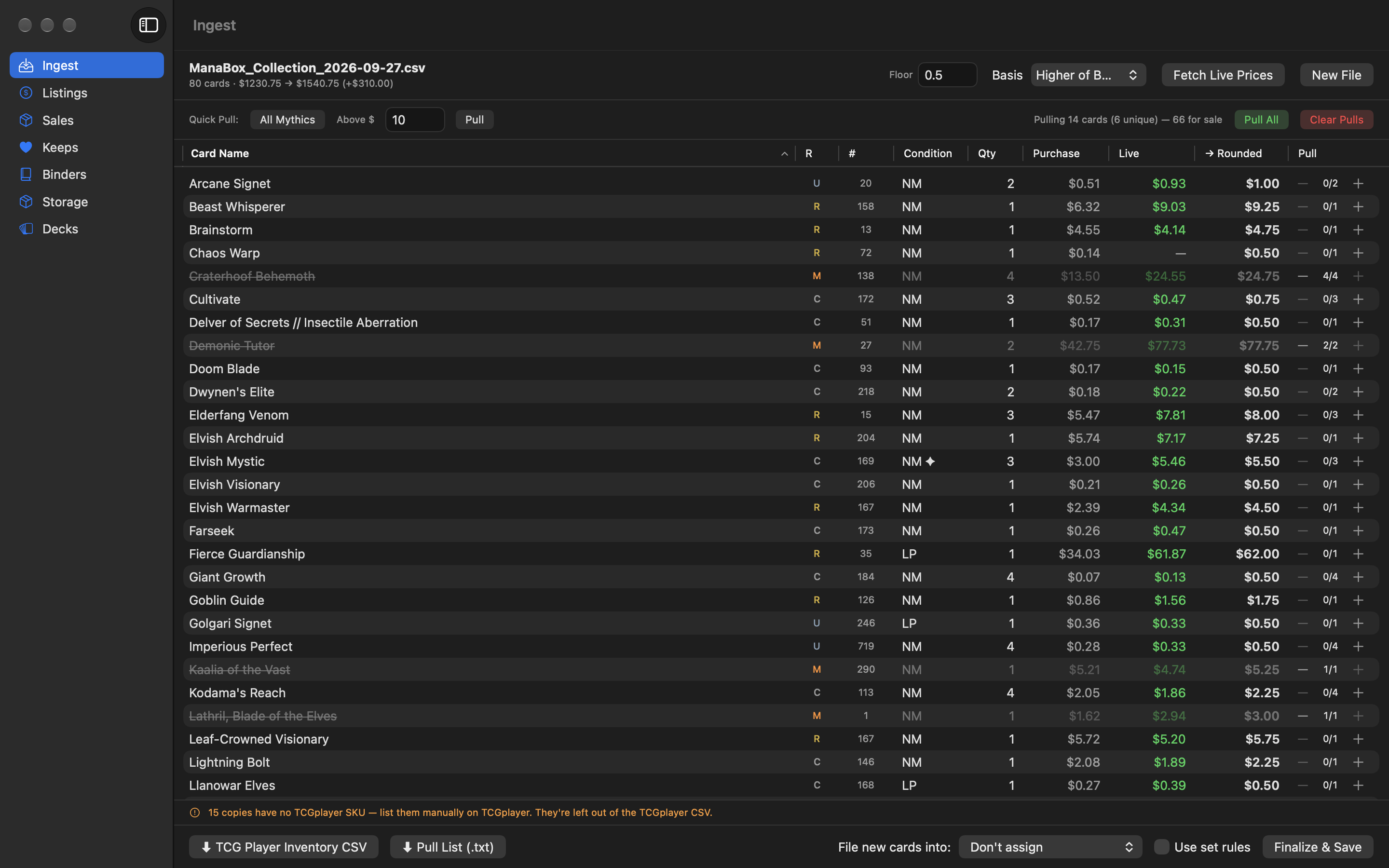
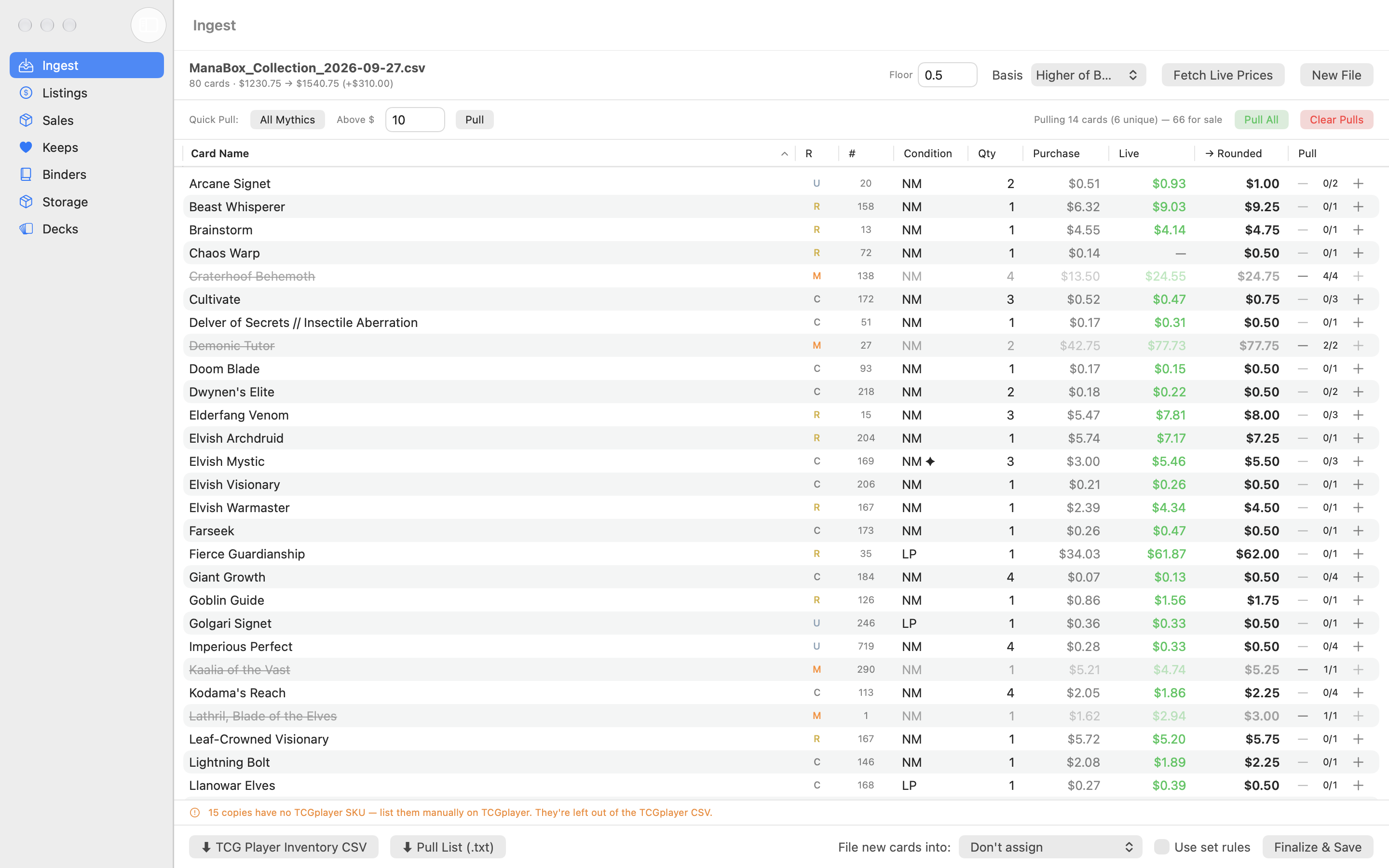
Each row shows the card name, rarity, collector number, condition (✦ means foil, ◈ etched, plus a language chip for non-English cards), quantity, purchase price, live price, the rounded listing price, and a Pull stepper. Click any column header to sort.
Choose what to keep
"Pulling" a card means keeping it. Use the stepper on each row (for example 2/4 means 2 of 4 copies pulled), or use the Quick Pull buttons:
- All Mythics pulls every copy of every mythic.
- Above $ + Pull pulls every card whose rounded price is above the amount you type (10 by default).
- Pull All and Clear Pulls do what they say.
Fully pulled rows are dimmed and struck through. The bar shows how many cards you're pulling and how many are left for sale.
Price and export
See Set listing prices and Export the inventory CSV. You can also click ⬇ Pull List (.txt) to save a plain-text list of pulled cards with set, collector number, and condition — handy when you're pulling them out of the box.
Save it
- Optional Collector: pick a box in File new cards into: next to the Finalize button to file every saved copy into a storage location at the same time, or tick Use set rules to file each card by its set (see File new cards at finalize). Leave it on Don't assign to skip this.
- Click Finalize & Save. Pulled copies go to Keeps and everything else goes to Listed.
- Choose Start New Session or Stay Here. If you filed the cards, Show Filing List… is offered too.
A review can only be finalized once. After it's saved, the button is disabled (“Already saved — start a new session to import more”), so clicking twice can't add the same cards twice.
Export the TCGplayer CSV before you finalize. Each listed copy then remembers the export file's name, shown as Exported In in the card editor.
An Ingest review is autosaved. If you quit partway through, the next time you open Ingest you're asked Resume Session? — choose Resume or Start Fresh.
New File clears the current review right away, without asking. Finalize first if you want to keep your work.
Selling on TCGplayer
The seller workflow: ingest a batch, keep what you want, list the rest, and upload it to TCGplayer as an inventory file (or list it on Mana Pool), and file the cards into numbered boxes. When orders come in, import the packing slips, print a pull list, mark the cards sold, and (optionally) make shipping labels with TCGTracking.
How do I set listing prices?
In the Ingest review toolbar:
- Click Fetch Live Prices to get current prices from Scryfall. A progress bar shows each card as it loads.
- Pick a Basis (this appears once live prices are loaded): Purchase Price, Live Price, or Higher of Both (the default).
- Set a Floor — the lowest price you'll list anything for. The default is $0.50.
The → Rounded column is your listing price: the basis price or the floor, whichever is higher, rounded up to the next $0.25. For example, a $1.13 card becomes $1.25, and a $0.10 card with a $0.50 floor becomes $0.50.
How do I export my new listings for TCGplayer?
- In the Ingest review, finish pulling your keepers and setting prices.
- Click ⬇ TCG Player Inventory CSV. The Upload to TCGplayer sheet opens with this batch's unpulled copies.
- Pick a mode (usually Add new copies only for a fresh batch, if you haven't imported your TCGplayer inventory), click Save CSV…, and choose where to save. The file name defaults to your import's name with
_roundedadded. - Upload the file in TCGplayer's Seller Portal (Inventory › Import).
The file uses TCGplayer's inventory columns. Magical Piles fills in:
- TCGplayer Id — the SKU, from the SKU lookup
- Product Line (Magic), Set Name, Product Name, Number, Rarity
- Condition, in TCGplayer's wording (for example Lightly Played Foil)
- Total Quantity or Add to Quantity, depending on the mode (see below)
- TCG Marketplace Price — your list price (the rounded price)
The market-price columns are left empty. When you finalize the review, the new Listed copies get the rounded price as their list price, and are counted in your next TCGplayer upload.
How does SKU lookup work?
TCGplayer identifies each printing-and-condition combination by a SKU. Magical Piles includes a SKU database inside the app and looks up every copy — no internet connection needed. It matches on the card's Scryfall ID, finish, condition, and language, falling back to set code and collector number.
Copies with no SKU are left out of TCGplayer uploads. The upload sheet lists them in orange (2 copies have no TCGplayer SKU — list them manually on TCGplayer); expand it to see which cards, and hover one for the reason. List those cards by hand in the Seller Portal.
TCGplayer gives etched foils and each language their own SKUs. The SKU table bundled with the app today only has English, non-etched SKUs, so every etched or non-English copy shows up as no TCGplayer SKU — list manually (hover: The installed SKU table only has English SKUs, or …can't tell etched SKUs apart). That changes once the app ships a SKU table that includes them. Mana Pool lists by Scryfall ID, so those copies can go there instead.
Where do I see what I'm selling?
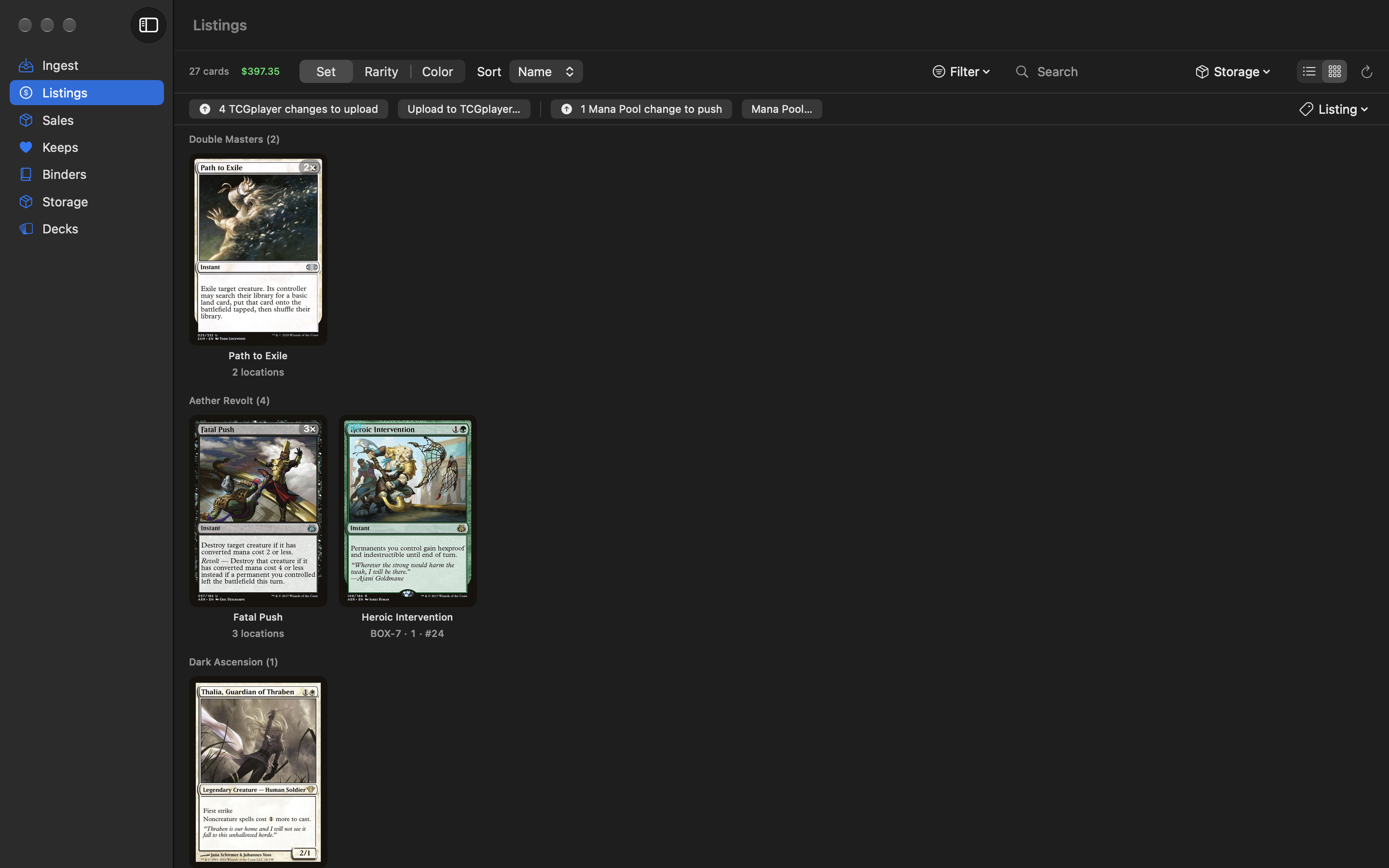
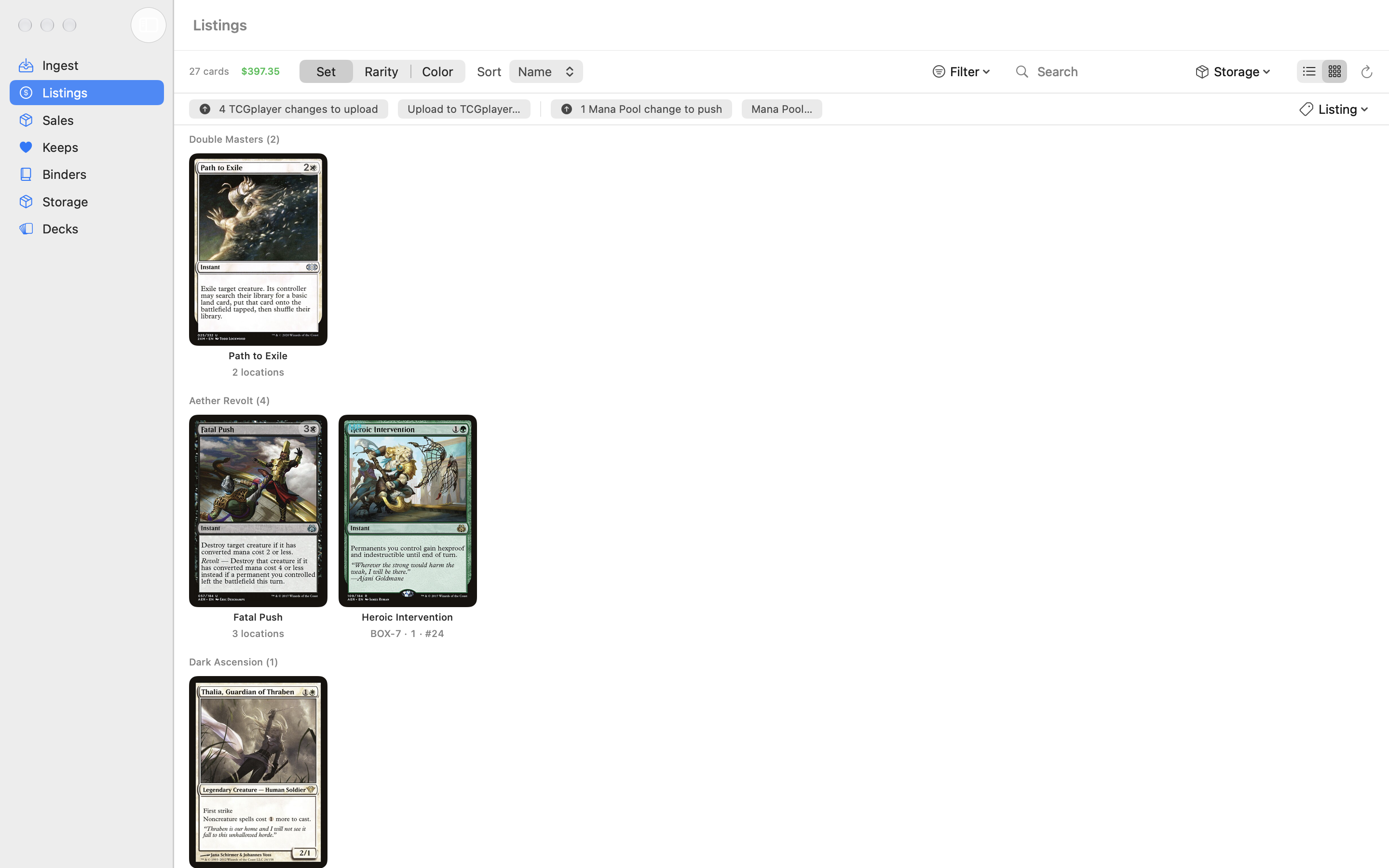
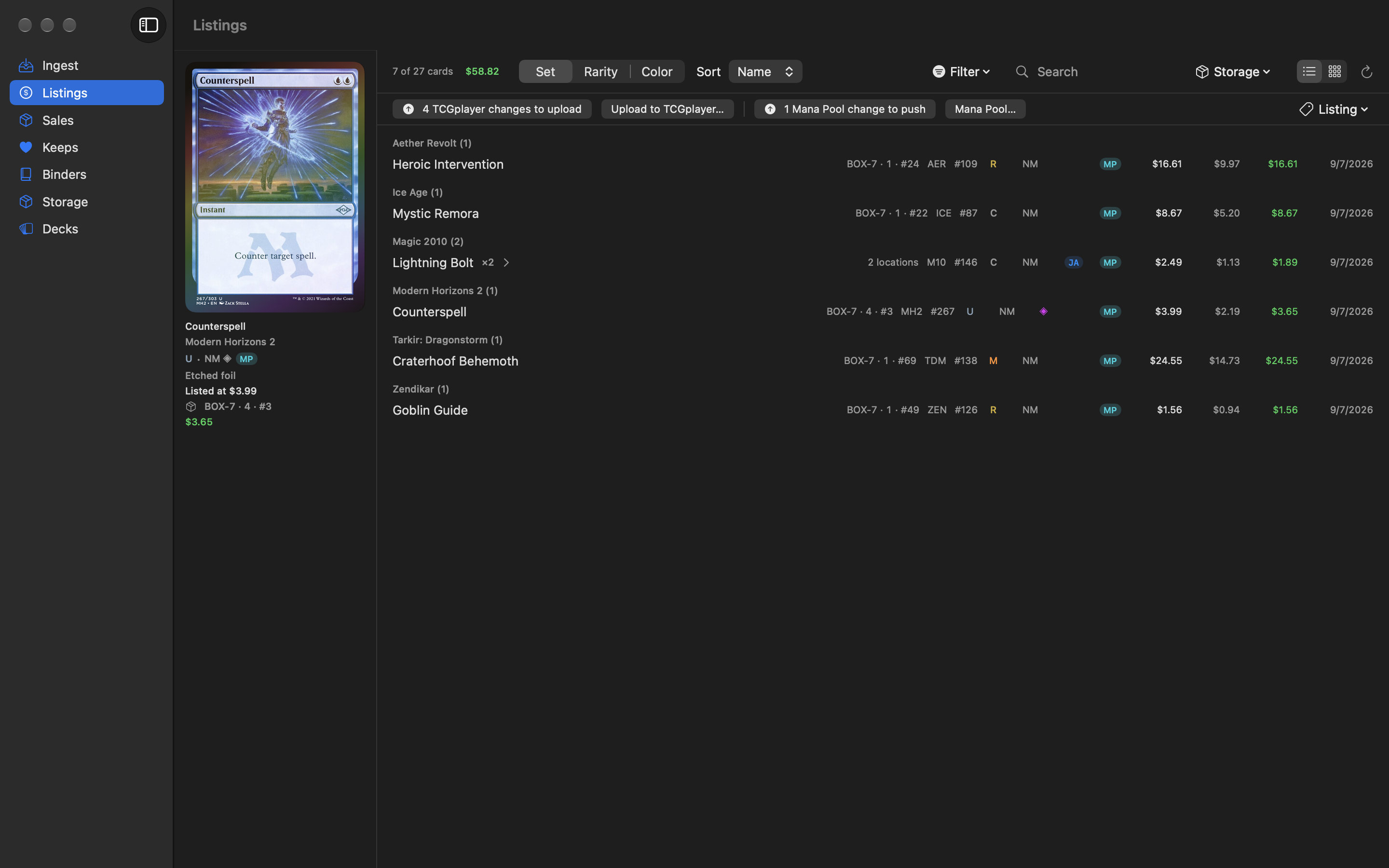
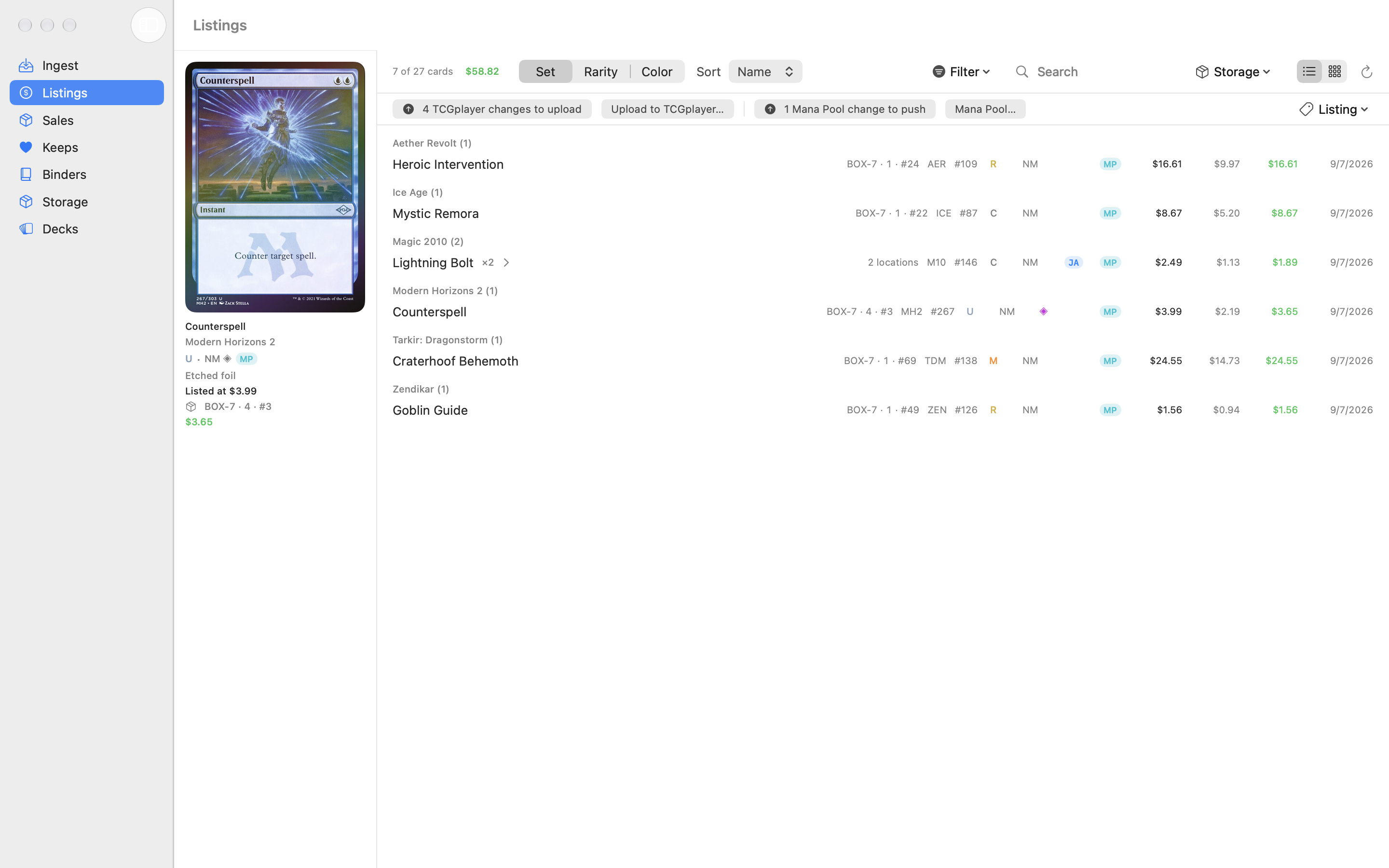
Click Listings. It shows every copy in your Listed pile and works just like Keeps: grid or list, search, sort, filter, and the total count and live value in the toolbar. You can group Listings by Set (the default), Rarity, or Color. In list view each row also shows its marketplace badge (TCG or MP) and its list price.
The bar above the cards tells you what needs sending: 3 TCGplayer changes to upload (or TCGplayer is up to date), with an Upload to TCGplayer… button, and the same for Mana Pool once you list there. The Listing menu has Set List Price… and Move to Mana Pool / Move to TCGplayer for the selected cards.
Already selling on TCGplayer? Export your inventory from TCGplayer and bring it in with Import TCGplayer Inventory Seller, or import the CSV as a normal file (a TCGplayer file goes straight to Listed).
How do I upload my listings to TCGplayer? New
In Listings, click Upload to TCGplayer…, or click the orange N TCGplayer changes to upload badge. The Upload to TCGplayer sheet offers three modes:
| Mode | What the file does | Upload it twice? |
|---|---|---|
| Set exact quantities | Every card you have Listed on TCGplayer, with TCGplayer's quantity set to exactly the number of copies Listed here. Cards you listed before but no longer have Listed are set to 0. | Harmless: changes nothing. |
| Changes since last upload | Only the cards whose count or price changed since your last exact upload, with their exact new quantity. Cards that left Listed (moved to Keeps, a deck, Sold, or Mana Pool) are set to 0. | Harmless: changes nothing. |
| Add new copies only | Only new copies, added on top of whatever TCGplayer already has. Never lowers a quantity. From Listings, select the copies you've just listed (⌘-click) first. | Don't. It adds the copies twice. |
Check the summary (for example 12 SKU rows · 30 copies in total · 2 set to 0 (no longer Listed)), click Save CSV…, and upload the file in TCGplayer's Seller Portal (Inventory › Import). Saving is what records the upload, so the badge then reads TCGplayer is up to date.
TCGplayer's import has two quantity columns. Add to Quantity means “add this many to what's there”, so uploading the same file twice, or uploading cards TCGplayer already had, counts them twice. Older versions of Magical Piles filled that column, which is how quantities doubled. The exact modes fill Total Quantity instead and leave Add to Quantity at 0: the file says “you have exactly 3 of this”, not “add 3”. Uploading it again just says the same thing again, so re-uploading the same file is harmless.
Import your TCGplayer inventory first
An exact upload sets TCGplayer to match the copies Listed here. If Magical Piles doesn't know about everything you have on TCGplayer yet, it could lower quantities there. So until you've run Import TCGplayer Inventory, the sheet shows a warning, Import your TCGplayer inventory first, and the exact modes need you to tick I understand this may lower quantities on TCGplayer before saving. Add new copies only never lowers anything, so it's the default until then. Once you've imported, Set exact quantities is marked (recommended), and after your first upload the sheet opens on Changes since last upload.
Set List Price… New
Select copies in Listings (⌘-click for several), then choose Listing → Set List Price… or right-click → Set List Price…. Pick one:
- Percent of market — each copy's list price becomes this percent of its Scryfall market price for its finish. Copies with no market price are left alone.
- Fixed price — every selected copy gets this list price.
- Minimum (floor) — copies listed below this price are raised to it; higher prices stay.
Click Set Prices. The changed cards then count as TCGplayer (or Mana Pool) changes, so upload or push them to apply the new prices there. You can also set one copy's List Price in the card editor.
How do I bring in my existing TCGplayer inventory? New Seller
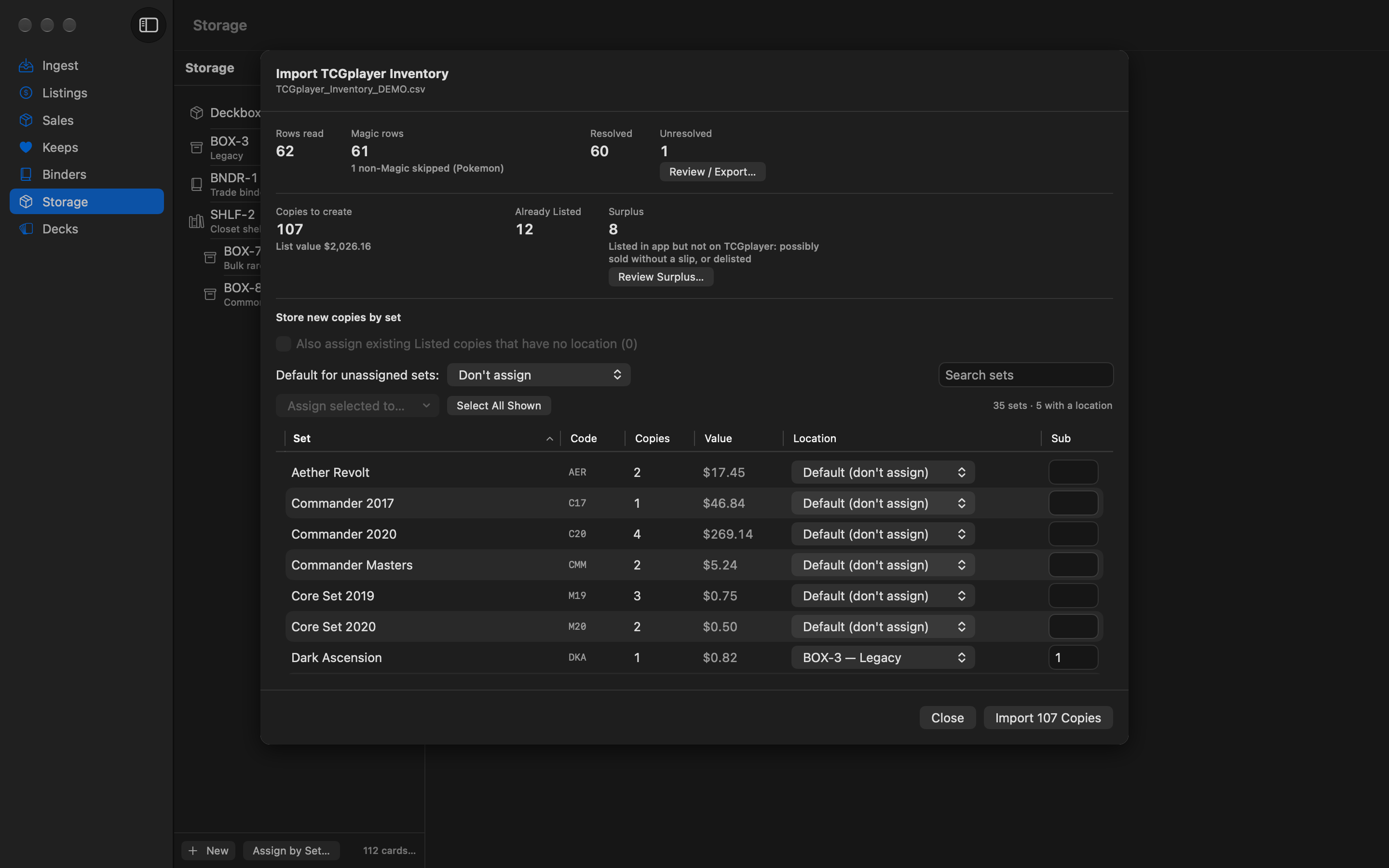
Import TCGplayer Inventory treats the inventory export from your TCGplayer Seller Portal as the list of what you have for sale, and brings your Listed pile in line with it. It's safe to run again whenever you export a fresh file. It also records TCGplayer's quantities, so exact uploads know what's already there and never lower TCGplayer by mistake.
- In your TCGplayer Seller Portal, export your inventory as a CSV.
- In Magical Piles, choose File → Import TCGplayer Inventory… and pick the file. (Or import it in Ingest as usual and choose Import as TCGplayer Inventory… when the TCGplayer file is detected.)
- Magical Piles reads the file and looks each row up: first by its TCGplayer Id in the bundled SKU database, then on Scryfall by set and number, or set and name. Card data it doesn't have yet is fetched from Scryfall, about one request every 100 ms. If you cancel or the fetch stops, what was fetched is kept; click Resume Fetching to continue.
- Check the preview, choose where new copies go (below), and click Import N Copies.
How the reconcile works
- For each printing, condition, finish, and language, the file's Total Quantity is compared with the copies already Listed on TCGplayer. Only the difference is created: if the file says 4 and you have 3 Listed, one copy is added. If you already have enough, nothing is added.
- New copies go to Listed, with the file's TCG Marketplace Price as their market price and no purchase price (the same as a normal TCGplayer import).
- Rows for other games, and rows with a quantity of 0, are skipped; the preview says how many.
- Running it again never adds a copy twice. If an import is cancelled or stops partway, the copies already created are kept, and importing again creates only what's still missing.
Surplus: Listed here, but not on TCGplayer
If you have more Listed copies of a printing than the file does (or the file doesn't have it at all), those copies are counted as Surplus. They may have sold without a packing slip, or been delisted. Nothing changes automatically. Click Review Surplus… to see them, with the quantity in the export and the quantity Listed here, then select copies and choose:
- Move to Keeps — only the pile changes; the copies stay where they are physically.
- Mark Sold — the copies leave Listed, their storage slot, and any binder. No sales order is recorded, so their sale price stays unknown. (To record a price, use the card editor instead.)
Unresolved rows
Rows that couldn't be matched to a card aren't imported. Click Review / Export… to see each one with its line number and the reason, then Export Unresolved CSV… to save them: the file has your original columns plus a Reason column. Fix or look up those rows and import the corrected file; rows already imported won't be duplicated.
Where new copies are stored
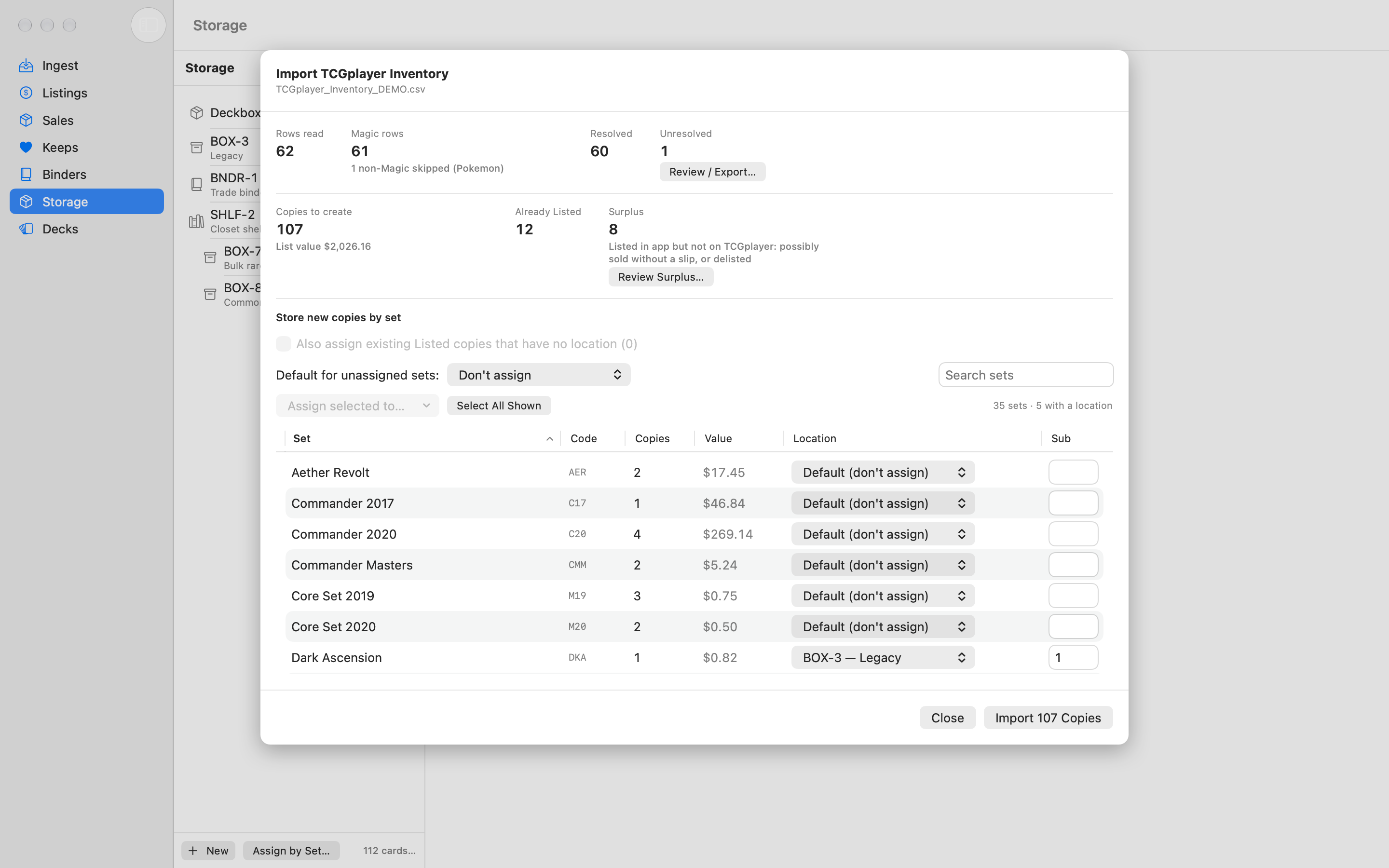
Under Store new copies by set, a table lists each set among the new copies, with its copy count and value. Pick a storage location for each set (and optionally a starting row, in the Sub column), or set Default for unassigned sets: for the rest. Leave it on Don't assign to import without filing. Tick Also assign existing Listed copies that have no location to file those too. The choices you make are saved as set rules and filled in next time. This table works the same way as Assign by Set.
When the import finishes, you see how many copies were created, already Listed, and filed, with Show Filing List… to print where each one went.
How do I record a sale from a packing slip? New Seller
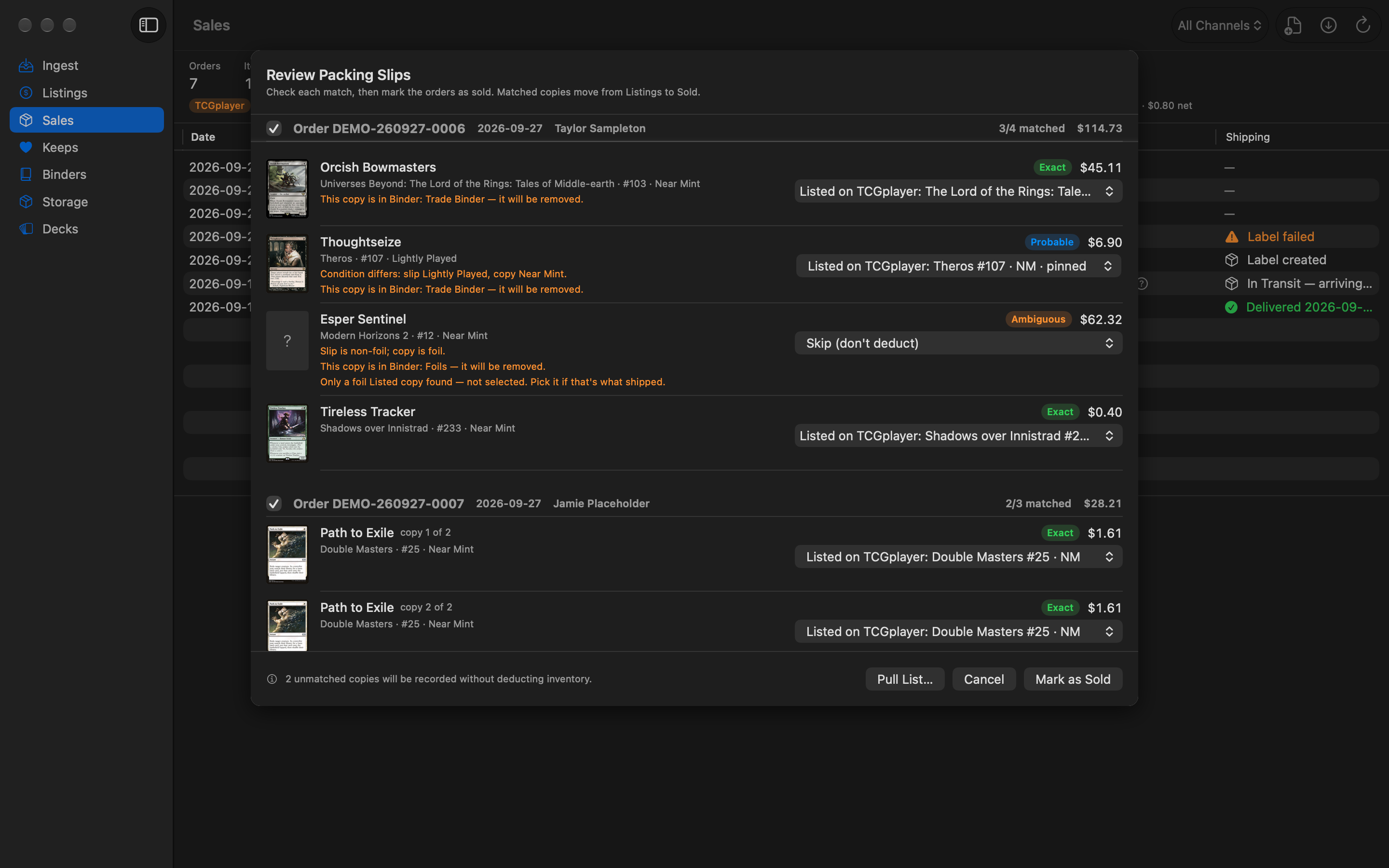
When TCGplayer orders come in, import their packing slips. Magical Piles reads each order, proposes which of your copies were sold, and — once you've checked its work — moves them to the Sold pile and records the order. Nothing changes until you click Mark as Sold.
- Download the packing slip PDFs from TCGplayer. One PDF can hold several orders, and you can import several PDFs at once.
- Click Sales in the sidebar. Drag the PDFs onto the window, or click Import Packing Slips… in the toolbar and choose them.
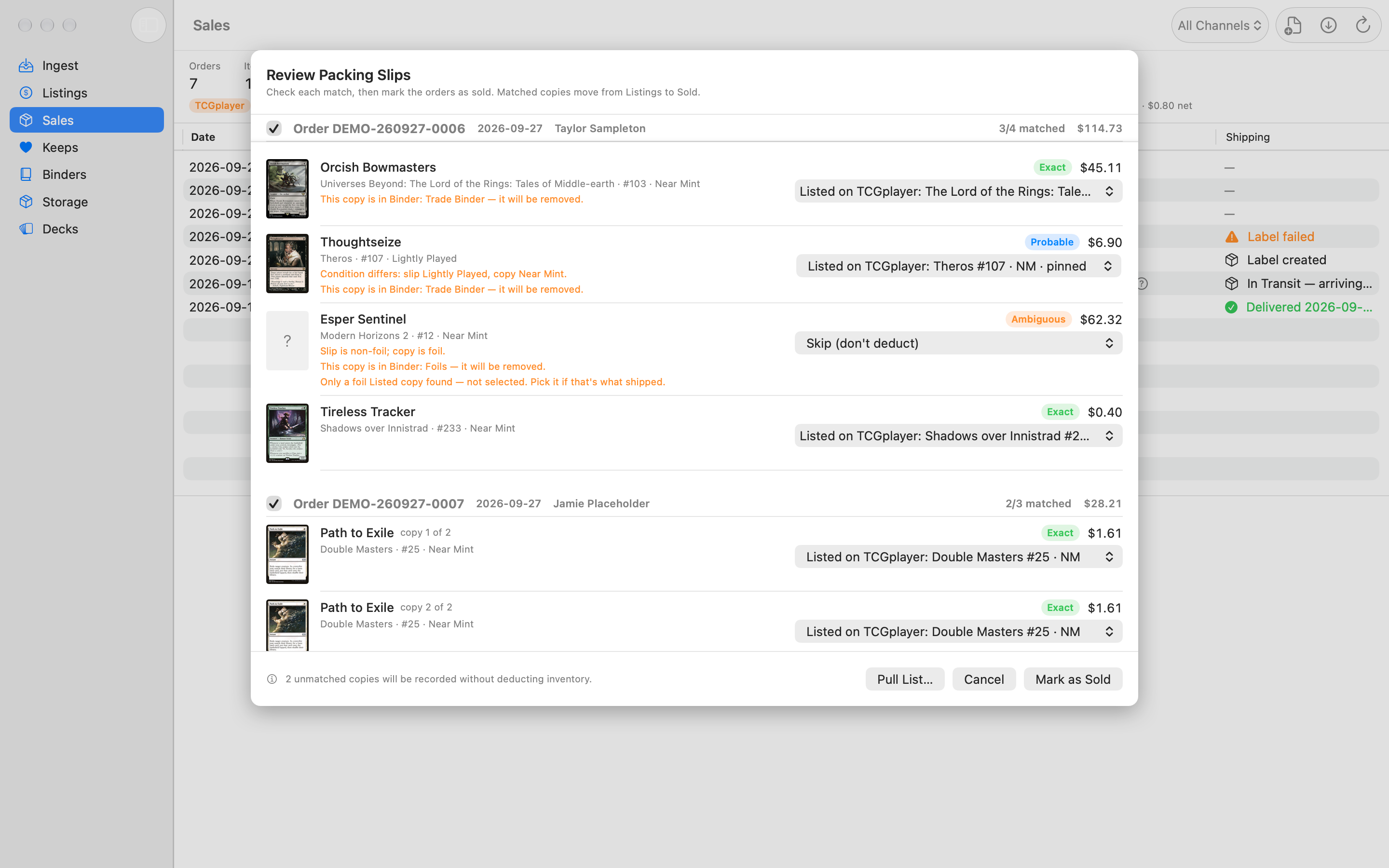
- The Review Packing Slips sheet lists each order with a checkbox, its order number, and how many items were matched (for example
5/6 matched). A line with a quantity of 2 or more gets one row per copy (“copy 1 of 2”). - Check each row's confidence badge and any orange notes under it. To change a match, pick a different copy from the menu on the right, or choose Skip (don't deduct).
- Untick any order you don't want to process yet. The copies it had been matched to become available, and the other ticked orders are matched again, so they can use them. Copies you picked by hand, and lines you chose to skip, are kept as they are.
- Optional: click Pull List… to get the chosen copies sorted by box, row, and slot, so you can pull them before they leave your inventory. See Pull lists.
- Click Mark as Sold.
How matching works
Each slip line is compared with your unsold copies by card name, then scored on set, collector number, condition, finish, and language. Only copies Listed on TCGplayer are picked automatically. Copies in Keeps, in a deck, or Listed on Mana Pool can appear in the menu as suggestions (“This copy is Listed on Mana Pool, not TCGplayer.”), but you have to choose them yourself. A copy is never assigned to two lines.
| Badge | Meaning |
|---|---|
| Exact | A Listed copy matches on everything. |
| Probable | Name, finish, and language match, but set, number, or condition differs. The note under the row says what's different. |
| Ambiguous | Several printings fit equally well, no Listed copy is left and you need to pick one yourself, or the only Listed copy is the other finish (foil vs. non-foil). |
| Not Found | No unsold copy with that name. The line can still be recorded (“No match — record only”). |
| Manual / Skipped | You picked the copy yourself, or chose to skip it. |
| Pre-Piles (gray) | The order was placed before your inventory import, so it's recorded as sales history and no copy is taken. See below. |
Skipped and unmatched copies are still recorded as part of the order, with their sale price, but no copy leaves your inventory for them.
Pre-Piles orders. If you've imported your TCGplayer inventory (or your Mana Pool inventory), that import already reflects every sale made before it. So an order placed on an earlier day is Pre-Piles: the card was sold before it was in Magical Piles. The review doesn't match it to any copy, even if you still have copies of that card Listed, and a banner says how many orders predate the import. Mark as Sold records it as sales history, with its revenue, without changing your inventory. If a copy really is still in your piles, you can pick it from the menu yourself. An order placed on the same day as the import is matched as usual, with a note that it may already be reflected in the import. Recorded orders from before the import show a gray Pre-Piles tag in Sales, and they still count in your totals. For TCGplayer, the date is taken from the export's file name (TCGplayer__MyPricing_20260927_093817.csv) or, if the file was renamed, from when you imported it. With no inventory import, matching works as before.
A foil copy is never picked for a non-foil line, or the other way round, and the same goes for etched foils and for a copy in a different language. If the only Listed copy is the other finish, the row is marked Ambiguous, that copy is listed first in the menu but not selected, and a note says “Only a foil Listed copy found — not selected. Pick it if that's what shipped.”
What happens when you mark an order as sold
- Each matched copy moves to the Sold pile.
- If that copy was in a deck or a binder, it's removed from it (the deck's changelog records the removal). The review warns you first: “This copy is in Deck: … — it will be removed.”
- If that copy was filed in a storage location, the order remembers where it was and the slot is freed (it becomes a gap; nothing is renumbered).
- The order is saved with its order number, date, buyer name, shipping method, and the sale price of each card. The shipping address isn't saved in the database.
- A copy of each packing slip PDF is kept in the app's data folder (
Packing Slips), so it can be handed to TCGTracking or re-read for a label retry later. See Shipping with TCGTracking.
Reading the Sales screen
The bar at the top totals every recorded order: Orders, Items, Revenue, fees, and net. Below it is a table of orders (date, order #, Channel, buyer, items, revenue, fees, net, and shipping status); select one to see its cards, their sale prices, and their cost where known. Use the Channel menu in the toolbar to show All Channels, or only TCGplayer, Mana Pool, or Manual orders. When more than one channel is shown, a line under the totals breaks them down per channel.
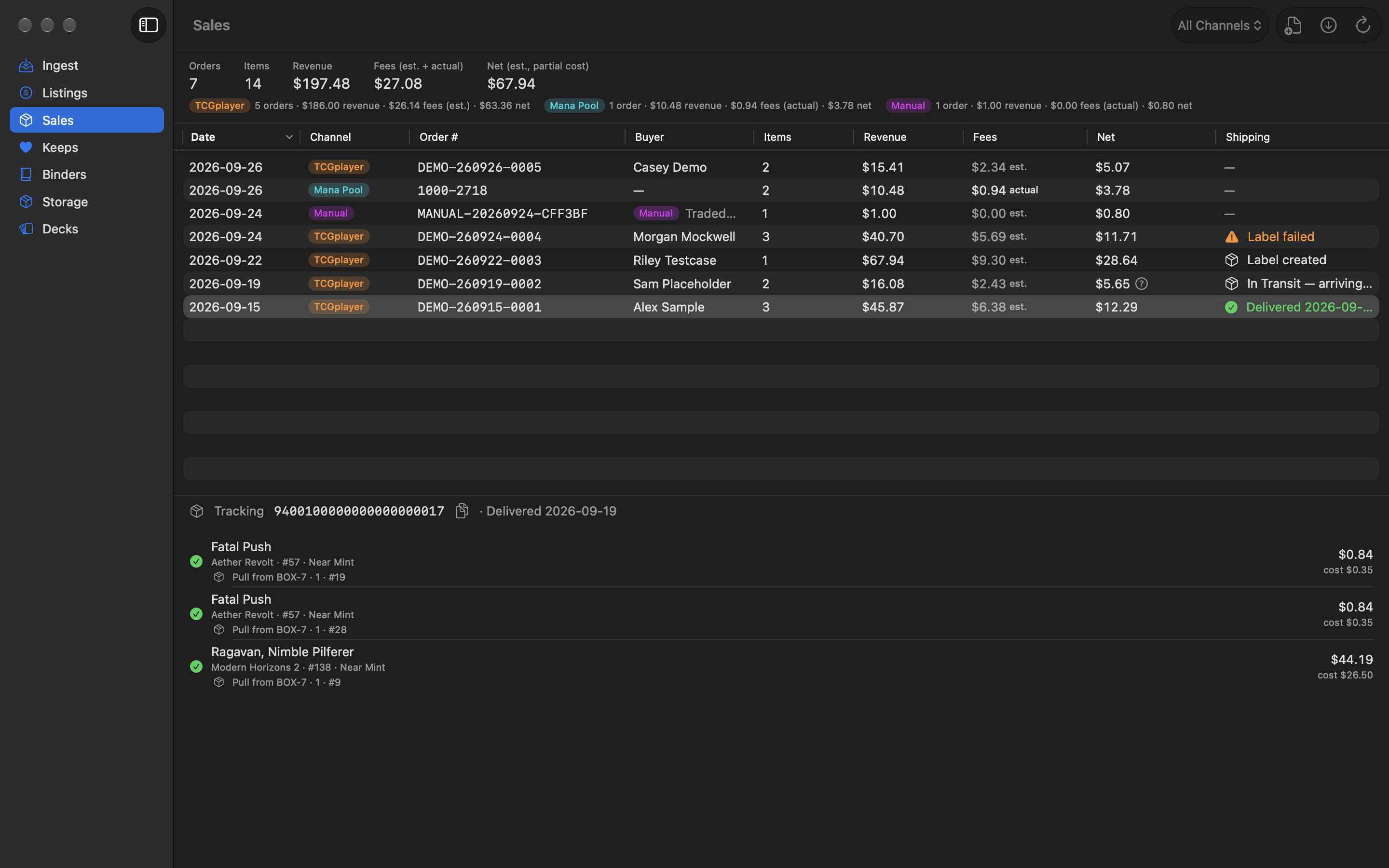
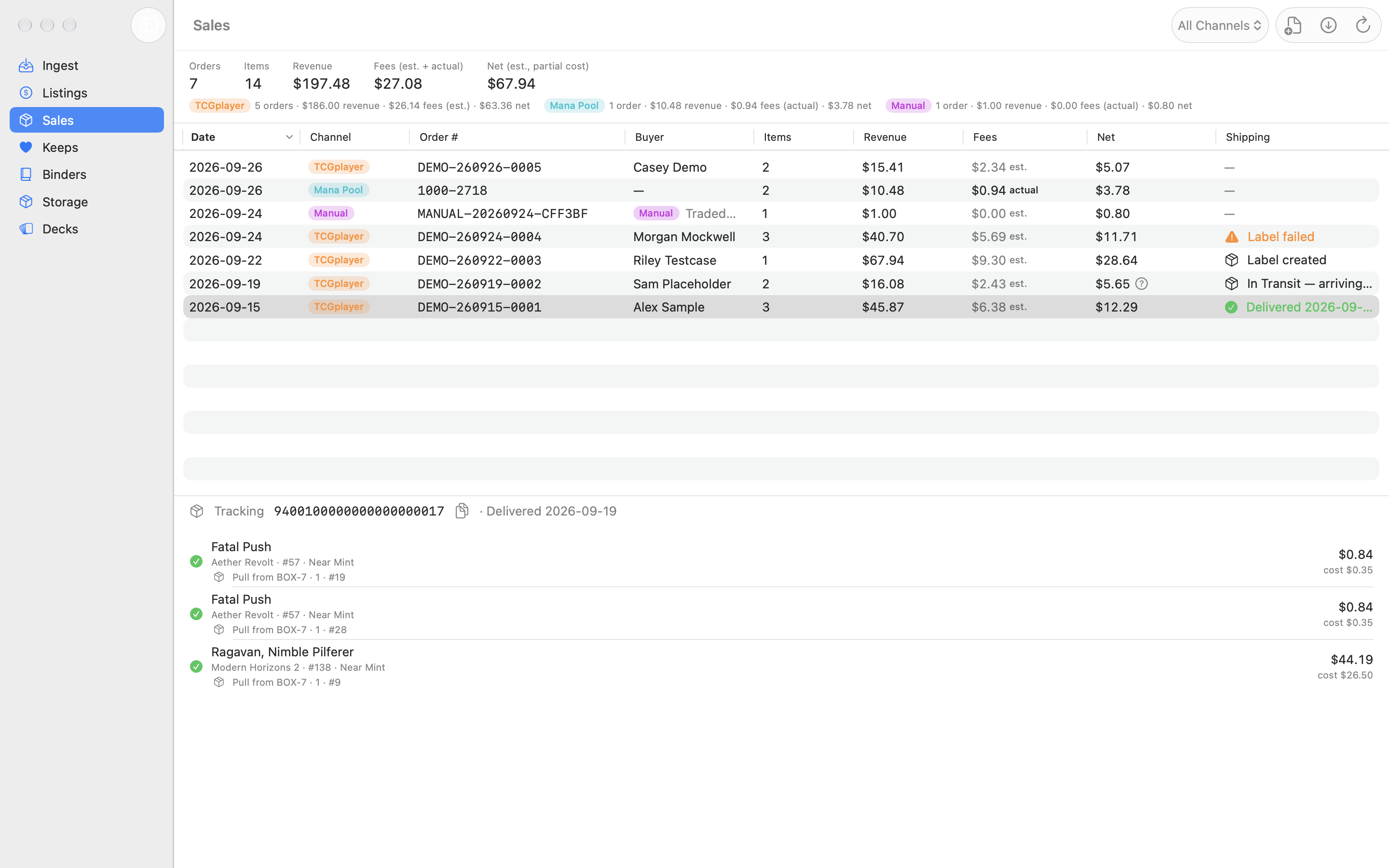
Each card line in an order shows:
- a green check if a copy was moved to Sold, or an orange question mark if the line was recorded without deducting inventory
- the slip's set, number, and condition
- Pull from … — where the copy was stored when it sold, for example
Pull from BOX-7 · 2 · #147(only for copies that were filed in a storage location) - Removed from … — the deck or binder it was taken out of, if any
- the sale price, and the cost where known
- Revenue is the order's card subtotal from the slip.
- Fees for a TCGplayer order are estimated (est.) from the fee rates in Settings, saved with each order when you process it. For a Mana Pool order they're Mana Pool's actual fees (actual). The summary label says which: Est. Fees, Fees (actual), or Fees (est. + actual).
- Net is revenue minus fees minus the cost of the copies sold. Cost is the copy's purchase price. A ? next to the net means cost is only known for some copies, so the figure is partial.
Cost is the copy's purchase price, so copies without one have no cost. Copies imported from a TCGplayer CSV never have one: the file's price is your list price and is saved as the market price instead. (Copies imported from TCGplayer by earlier versions stored the list price in the purchase-price field; Sales ignores it for those too.)
What if I import the same slip twice?
Orders are identified by order number. An order that's already been processed shows as “Order … was already processed — skipped” and isn't recorded again.
How do I undo an order?
Right-click the order in the Sales table and choose Revert Order…. Reverting is free on every plan.
- Sold copies go back to the pile they came from (Listed copies to the same marketplace), except copies that were taken out of a deck, which return to Keeps.
- Each copy goes back into the storage slot it was pulled from, if that slot is still free (orders recorded by older versions of the app didn't save the slot, so those copies come back unfiled). If another card has taken it, you're told how many couldn't go back; file those again.
- Deck and binder memberships removed at sale time are not restored.
- The order record is deleted.
- For a Mana Pool order, reverting only changes Magical Piles: the order stays as it is on Mana Pool. Push your Mana Pool changes if its quantity should go back up.
If a TCGTracking label was made for the order, reverting it in Magical Piles leaves the label alone — TCGTracking has no cancel endpoint. Void the label in your TCGTracking dashboard if you need to.
If a line keeps coming up Probable because of a different set or condition, fix that copy in the card editor so future slips match exactly.
How do I record a sale made outside TCGplayer? New
Sold a card at your local game store, or to a friend? Record it from the card editor:
- Double-click the copy (or right-click → Edit Card…). For a grouped card, expand the group in list view first.
- Set Pile to Sold.
- Enter the Sale Price (required). It starts at the copy's market price, or its live price if it has none.
- Optionally type a note, such as sold at FNM.
- Click Save.
Magical Piles records a one-card manual order in Sales, numbered like MANUAL-20260927-3F9A1C, with no marketplace fees. The copy leaves its deck, binders, and storage slot, as with any sale, and its cost is its purchase price where known. In the Sales table the order shows a purple Manual badge in the Buyer column, followed by your note. Manual orders count toward the totals, but have no shipping or TCGTracking actions.
To undo a manual sale, right-click it in Sales and choose Revert Order…, the same as for a packing-slip order: the copy goes back to its pile and, if the slot is still free, its storage slot.
How do I make shipping labels with TCGTracking? New Seller
Magical Piles can pass sold orders to TCGTracking (tcgtracking.com), a separate shipping-label and tracking service for card sellers. It's optional and off by default. Magical Piles isn't affiliated with TCGTracking; you need your own TCGTracking account.
Choose a mode in Settings → Shipping — TCGTracking:
| Mode | What happens after Mark as Sold | Cost |
|---|---|---|
| Off (default) | Nothing. No shipping step. | — |
| Hand-off (free) | Magical Piles opens TCGTracking's Quick Create page in your browser and shows the packing slip PDFs in Finder, so you can drag them in. Magical Piles sends nothing to TCGTracking itself. | Free |
| API (paid per label) | Magical Piles creates a label for each order through TCGTracking's API, then prints them together in one print dialog (if Print label automatically after marking sold is on). The Sales table then shows each order's shipping status. | TCGTracking charges a per-label fee after your first 100 API orders, and an API key needs a payment method on file with TCGTracking. Check tcgtracking.com for current pricing. |
Mana Pool orders New: in API mode, letter-eligible Mana Pool orders get TCGTracking labels too, using the address Mana Pool sent (held in memory only). Orders where Mana Pool requires tracking are skipped, because a TCGTracking letter doesn't meet Mana Pool's Ground Advantage requirement; see Mana Pool orders. Hand-off mode doesn't apply to Mana Pool orders, since they have no packing slip.
The shipping step runs after the sale is saved. If TCGTracking is unreachable or a label fails, the sale is still recorded; only the shipping column shows the problem.
Working with labels (API mode)
- Shipping column: Label created, Label failed (hover to see why), a tracking status from TCGTracking, or Delivered with the date.
- Tracking number: select an order to see it above the card list, with a copy button. Right-click an order for Copy Tracking Number.
- Refresh tracking: click Refresh Tracking in the Sales toolbar to update every order with a label that hasn't been delivered yet, or right-click one order → Refresh Tracking.
- Reprint: right-click an order → Reprint Label downloads the label PDF again and opens the print dialog.
- Retry: for an order whose label failed (or that never got one), right-click → Retry Label (or Create Label), or use the Retry button above the card list. The address is read again from the archived packing slip. Retrying is safe: TCGTracking recognizes the order number, so you won't get a second label for the same order.
- Hand-off for one order: right-click → Send to TCGTracking (Hand-off) works in any mode, as long as the archived slip is still in the Packing Slips folder.
What is sent to TCGTracking, and what's stored
- In API mode, each label request contains the buyer's name and shipping address, the order number, each item's name (with set), quantity, and price, the envelope size, and whether it's insured. Your shipper number and API key authenticate the request.
- The shipping address is read from the packing slip and used only for that request. It isn't saved in Magical Piles' database, and address details are removed from any error message before it's shown or saved.
- What is saved on the order: TCGTracking's order ID, the tracking number, the shipping status, and the last error.
- Your shipper number and API key are stored in your Mac's Keychain.
- The packing slip PDFs themselves (as downloaded from TCGplayer, address included) are archived in the
Packing Slipsfolder inside the app's data folder (see Where is my data stored?). That's how a retry or hand-off can find the address later. Delete old slips there if you don't need them.
Reverting an order doesn't cancel its label. Void it in your TCGTracking dashboard if you need to.
Selling on Mana Pool New Seller
List some of your stock on Mana Pool instead of TCGplayer, push quantities and prices to it, fetch its orders into Sales with the real fees, and mark them shipped. You need your own Mana Pool seller account. Magical Piles isn't affiliated with Mana Pool.
How do I choose which copies go on Mana Pool?
Every Listed copy is on exactly one marketplace, TCGplayer by default. That's split stock: a copy is never offered on both, so it can't sell twice.
- In Listings, select the copies (⌘-click for several).
- Choose Listing → Move to Mana Pool, or right-click → Move to Mana Pool. (For one copy you can also set Marketplace in the card editor.)
- The bar confirms it, for example Moved 4 copies to Mana Pool. TCGplayer's count drops in the next TCGplayer changes upload; push your Mana Pool changes to list them there.
Move to TCGplayer moves them back, and works on every plan. Each copy shows a TCG or MP badge, and the Listings Filter menu has a Marketplace filter.
How do I connect my Mana Pool account?
- On manapool.com, make an access token under Seller › Integrations › Mana Pool API. The Get a token link in Settings opens that page.
- In Magical Piles, open Settings → Mana Pool. Enter your Mana Pool account email and the Access token (mpat_…), and click Save.
- Click Test Connection. You should see Connected to Mana Pool — N inventory items.
The email and token are stored in your Mac's Keychain and sent only to Mana Pool. Clear removes them. Optionally turn on Check for new Mana Pool orders when Sales opens.
How do I send my listings to Mana Pool?
In Listings, click the teal N Mana Pool changes to push badge, or Mana Pool…. The Mana Pool Listings sheet has two modes, both absolute, like TCGplayer's exact uploads:
- Set exact quantities — every card you have Listed on Mana Pool, with Mana Pool's quantity set to exactly the number of copies Listed here. Cards you pushed before but no longer have on Mana Pool are set to 0.
- Changes since last push — only the cards whose count or price changed since your last push. Cards that left Mana Pool (moved to TCGplayer, sold, or moved to Keeps) are set to 0.
Click Push to Mana Pool. Cards are sent by Scryfall ID, finish, condition, and language, so etched and non-English copies list fine. The price is the list price (or Scryfall's market price if there's none). Pushing twice changes nothing. If a push stops partway, what was sent is saved, and pushing again sends only the rest.
If you haven't imported your Mana Pool inventory yet, the sheet warns you (Import your Mana Pool inventory first), because a push could lower quantities on Mana Pool, and asks you to tick I understand this may lower quantities on Mana Pool.
No API access? Save a CSV instead
At the bottom of the sheet, pick a Format and click Save CSV…, then import the file on Mana Pool (Seller › Inventory › Import):
- ManaBox format (by Scryfall ID) — includes etched and non-English copies. On Mana Pool, choose ManaBox. The Purchase price column is your price.
- tcgplayer.com format (by TCGplayer SKU) — only copies with a TCGplayer SKU. On Mana Pool, choose tcgplayer.com.
Saving a CSV works without a token.
How do I bring in what I already list on Mana Pool?
Choose File → Import Mana Pool Inventory…. It reads your Mana Pool listings through the API and adds any copies missing from Listings (on Mana Pool). Nothing on Mana Pool changes. It works like Import TCGplayer Inventory:
- The preview shows Copies to create, Already on Mana Pool here, and Surplus (copies Listed on Mana Pool here but not on Mana Pool: possibly sold without being recorded, or delisted). Review Surplus… lets you Move to Keeps or Mark Sold.
- Store new copies by set files the new copies, as in the TCGplayer import.
- Sealed product, photo listings, and cards in a condition, finish, or language the app doesn't use are listed as Not Importable. They stay on Mana Pool as they are, and pushes never change them.
- Click Import N Copies (or Record Mana Pool Quantities if there's nothing new). Mana Pool's quantities are then recorded, so pushes only send what differs. Running it again never adds a copy twice.
How do I process Mana Pool orders?
- In Sales, click Check for New Orders in the toolbar. Magical Piles fetches the Mana Pool orders that need shipping.
- The Review Mana Pool Orders sheet works like the packing-slip review: each item is matched to a copy, and only copies Listed on Mana Pool are picked automatically. Each order shows its shipping method (First Class (letter, untracked OK) or Ground Advantage (tracking required)) and Mana Pool's exact fees and payout. Pull List… is here too.
- Click Mark as Sold. Each order is recorded with Mana Pool's actual fees, the shipping the buyer paid, and the payout.
- Ship it, then right-click the order → Mark Shipped… (or use the button above its cards). Pick the Carrier, enter the Tracking number (the Tracking URL (optional) fills in for common carriers), and click Mark Shipped. Magical Piles sends it to Mana Pool. Afterwards the button reads Update Tracking….
When Mana Pool requires tracking on an order, it needs Ground Advantage or better. TCGTracking's letter tracking doesn't count, so Magical Piles won't make a TCGTracking label for those orders; ship them tracked, then Mark Shipped. Orders that can go by letter mail can still use TCGTracking (API mode) for a letter label.
The selected order shows its fulfillment status, tracking number, a Track link, and the payout. Orders already recorded aren't fetched again.
Buyer details
Mana Pool sends the buyer's shipping address with the order. Magical Piles keeps it in memory only and never stores it. It's only ever sent onward to TCGTracking, if you ask for a letter label. No buyer name is stored for Mana Pool orders.
Undoing an order
Revert Order… works as for any order, but only changes Magical Piles: the order stays as it is on Mana Pool, and the copies go back to Listed on Mana Pool. Push your Mana Pool changes if its quantity should go back up.
Keeps & Binders
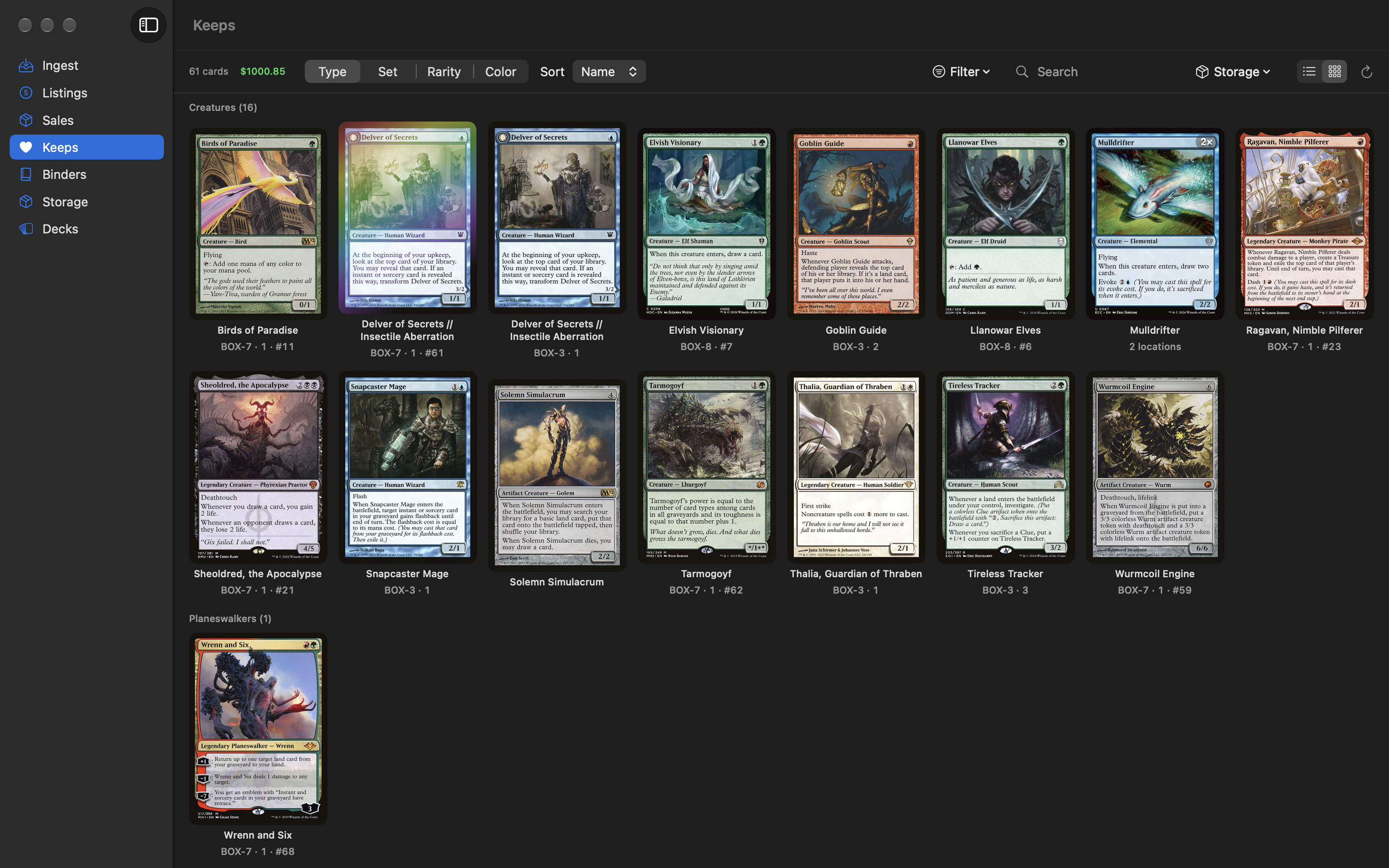
Keeps shows every copy you've decided to hold on to. Binders let you organize any of your cards into named groups.
How do I browse and find cards?
The toolbar at the top of Keeps (and Listings) has:
- Grouping: Type, Set, Rarity, or Color. Each group heading shows its card count.
- Sort: Name, Price, Rarity, Set, or Date Added.
- Search: matches card names, set names, and storage location codes (try
BOX-7). - Filter New: show only one finish or language (and, in Listings, one marketplace). Clear Filters resets it.
- View: a card-image grid, or a list with a large preview of whichever card you hover.
- Refresh (↻): reloads card types, colors, images, and prices from Scryfall.
- Storage menu New: file Collector, clear, or make a pull list Collector for the cards you've selected. ⌘-click cards to select several.
The list view shows the storage location code (if the copy is filed), set, collector number, rarity, condition with its finish (✦ foil, ◈ etched), language chip, purchase price, live price, and date added. A grouped row shows the shared location, or “N locations” if its copies are in different places. In grid view the code appears under the card name. Foil cards shimmer in the preview.
How do I edit a single card?
Double-click a card, or right-click it and choose Edit Card…. You can change its Condition, Finish, Language, Purchase Price, Pile, Deck, Stored In, Market Price, and Notes. For a Listed copy there's also Marketplace (TCGplayer or Mana Pool Seller) and List Price. The editor also shows when the copy was added and, for listings, which export file it was Exported In.
To move a card to another pile — say, from Keeps to Listed — change Pile and click Save. Choosing Sold asks for a sale price and records a manual order in Sales; see Record a sale made outside TCGplayer.
Choosing a Deck puts the copy in the Deck pile automatically. Choosing no deck for a copy that was in a deck returns it to Keeps.
Stored In sets the copy's storage location by hand. Pick a location, then type the row (or page, section, compartment) and position (or pocket), or click Next Free for the next open slot in a chaos-sorted location. The full code is shown underneath. If the slot already holds another card, you'll see “That storage slot already holds another card.” Choose Not filed to clear it. Changing Stored In needs Collector; without it, the current location is still shown.
When a card is part of a group (×3), switch to list view and expand the group to edit one particular copy.
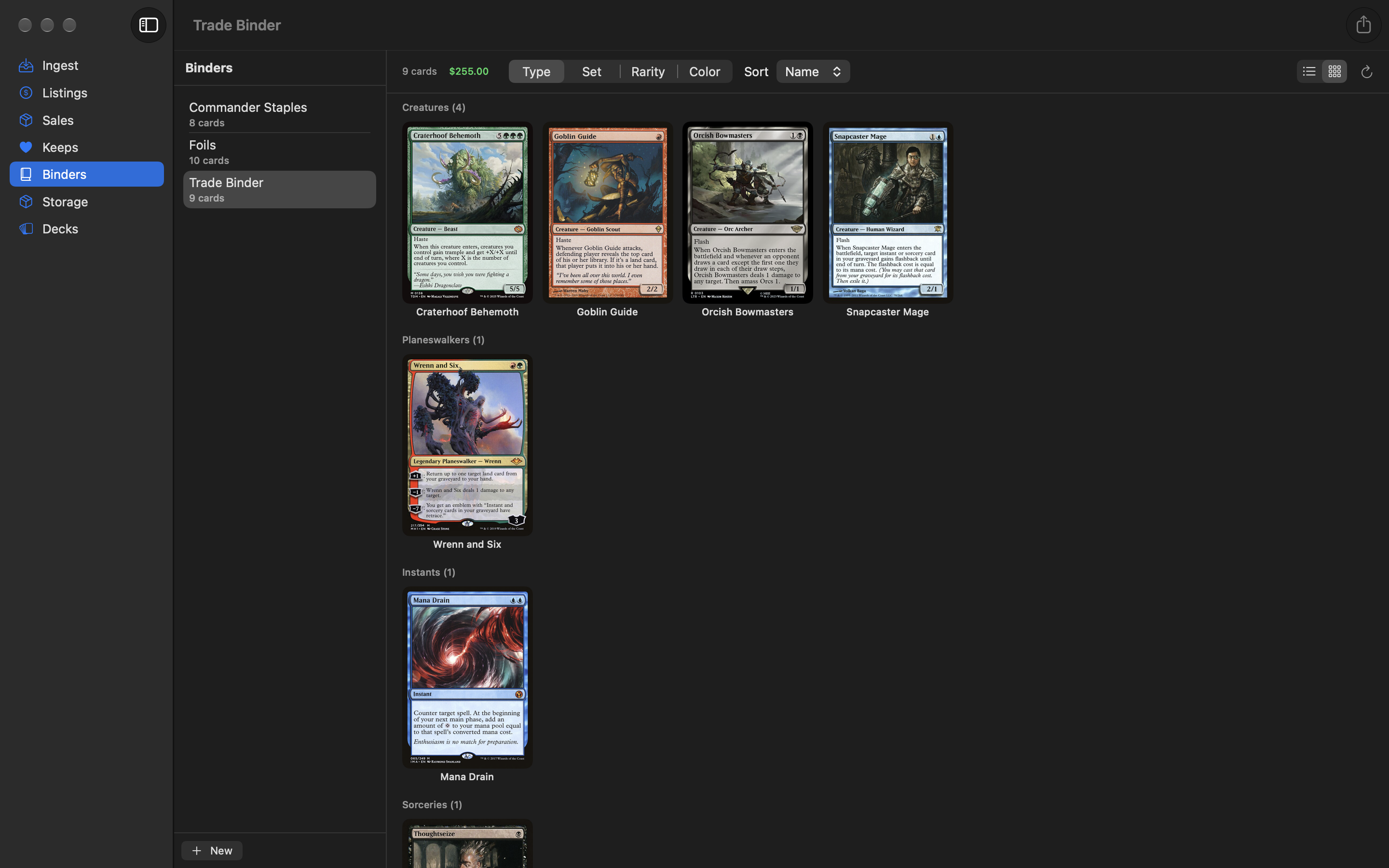
How do I make a binder?
- Click Binders in the sidebar, then New at the bottom of the binder list.
- Double-click the new binder's name (or right-click → Rename), type a name, and press Return.
- Go to Keeps or Listings, right-click a card, and choose Add to Binder → your binder.
Inside a binder you get the same grouping (Type, Set, Rarity, Color), sorting (Name, Price, Rarity, Set), grid and list views, and refresh button, plus the binder's card count and value.
How do I take a card out of a binder?
Right-click the card in the binder:
- Remove from Binder removes it from the binder only. The card stays in its pile.
- Remove from Binder + Collection deletes the copy entirely — from the binder, any deck, and your collection.
To delete a whole binder, right-click it in the binder list and choose Delete. The cards stay in your collection.
Storage & chaos sorting New Collector
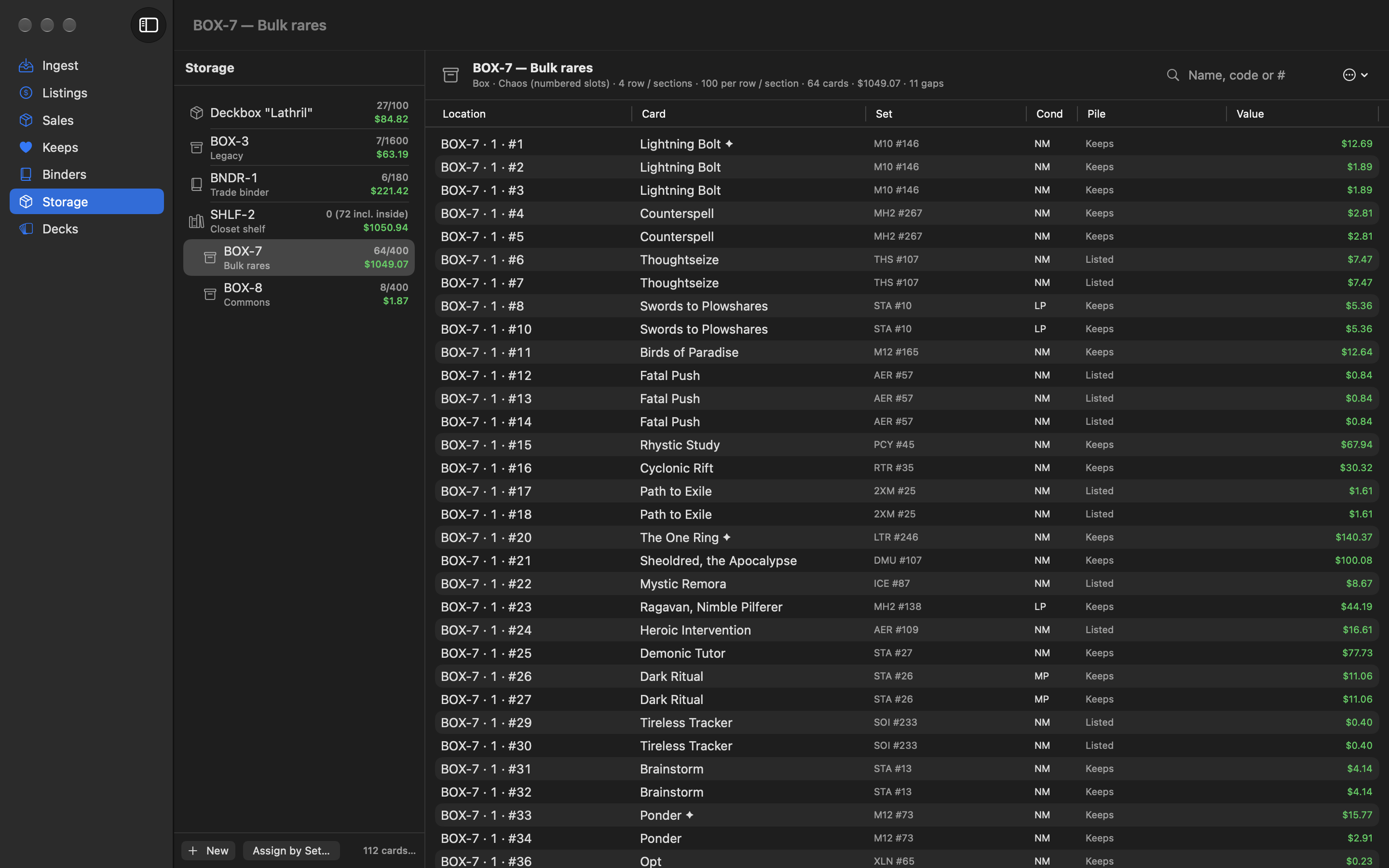
Tell Magical Piles about the boxes, binders, and drawers your cards live in, and it remembers where every copy is. With chaos sorting you drop cards into a box in whatever order they arrive, and each one gets a numbered slot, so you can find it again without keeping the box alphabetized.
How do I set up my boxes?
- Click Storage in the sidebar, then New at the bottom of the location list.
- Pick a Kind, and choose Identify by Number (with an optional name, like Bulk commons) or Name only. New numbered locations suggest the next free number for that kind.
- Optionally put it Inside another location (for example, Box 7 on Shelf 2).
- Choose how it's Sorting: Chaos (numbered slots), Sorted (by set), or Unsorted.
- Optionally set how many rows (or pages, sections, compartments) it has, and how many cards fit in each. Leave them empty for “any” and “unlimited”.
- Click Create. The code it will use is shown at the top of the sheet as you type.
| Kind | Code | Its subdivisions are called |
|---|---|---|
| Box | BOX-7 | Row / Section |
| Bin | BIN-2 | Row / Section |
| Deckbox | Deckbox "Atraxa" (or DBOX-1 if numbered) | Row / Section |
| Binder | BNDR-1 | Page (and positions are Pockets) |
| Drawer | DRWR-1 | Compartment |
| Shelf | SHLF-2 | Section |
| Row | ROW-1 | Section |
| Other | LOC-1 | Sub |
Number or name only? A numbered location's number must be unique for its kind (there's only one Box 7). A name-only location is identified by its name instead, which must be unique for its kind. Deck boxes default to name-only (Atraxa) and to Unsorted, because they usually hold a built deck.
Sorting modes:
- Chaos (numbered slots) — cards are filed in the order they arrive and every copy gets a numbered position. This is the default for everything except deck boxes.
- Sorted (by set) New — you keep the cards in set order, then collector number, yourself. Magical Piles records the row but not a position, and pull lists walk the location set by set. Use Assign by Set to say which sets live there.
- Unsorted — Magical Piles records that the card is in there (and the row, if you give one), but not a position.
The location list shows each location's code, name, card count (out of its capacity, if set), how many cards are inside it including nested locations, and its value. The bottom of the list shows the total number of cards filed. Right-click a location for Edit…, New Location Inside…, and Delete…. The Assign by Set… button next to New files cards by set (see File by set).
Select a location to see its cards in walking order (row, then position), with a search field (Name, code or #). The header shows its kind, sorting, rows, capacity, card count, value, and how many gaps it has. Double-click a card to edit it.
How do I read a location code?
Every filed copy has a code. Parts are separated by ·:
| Code | Means |
|---|---|
BOX-7 · 2 · #147 | Box 7, row 2, position 147 |
BNDR-1 · 12 · #4 | Binder 1, page 12, pocket 4 |
Deckbox "Atraxa" · #12 | The deck box named Atraxa, position 12 (no rows) |
BIN-2 · 3 | Bin 2, section 3, no numbered position (a Sorted or Unsorted location) |
Codes appear in Keeps, Listings, binders, the Storage section, pull lists, and on sold cards in Sales. Pull lists also show the full path of nested locations, like SHLF-2 › BOX-7.
How do I file cards into a box?
- In Keeps or Listings, right-click a card and choose File into Location…. To file several at once, ⌘-click to select them first; the menu then says File into Location… (N cards). You can also use the toolbar's Storage menu → File Selected into Location….
- Pick the Location (or click New Location…).
- Optionally set Start at a particular row. Leave it on Auto to continue where the last cards went.
- For a chaos-sorted location, optionally turn on Fill gaps left by removed cards first.
- Check the preview (for example
12 cards: BOX-7 · 2 · #148 → BOX-7 · 2 · #159) and click File. - Click Show Filing List… to print or copy the list of which card went to which slot, then put the cards away in that order.
How filing works in a chaos-sorted location:
- Cards are filed in the order they're listed on screen, each taking the next position after the highest one used in that row.
- Fill gaps: with the toggle on, empty positions left by cards that were removed are reused first, lowest first, starting from the first row. Otherwise gaps are left alone.
- Rollover: when a row reaches its capacity, filing continues in the next row (the preview says “Rolls over into row / section 3 when full”). Rollover needs a capacity; without one, a row never fills.
- Full: if you set a number of rows and the last one fills up, the remaining cards aren't filed and you're told how many (“BOX-7 is full. 4 cards won't be filed.”). They stay where they were.
- Filing never goes back to earlier rows and never renumbers cards already there.
- Filing a card that's already in another location moves it. Filing cards that are already in the same location re-files them at new positions.
- Sold copies are never filed; they're skipped and counted in the result.
Sorted and Unsorted locations record the row but no position. They also roll over to the next row when one reaches its capacity.
To file a single card at an exact spot, use Stored In in the card editor. In the Storage section, right-click cards and choose Move to Another Location… to move them.
How do I file new cards as I import them?
In the Ingest review, pick a location in File new cards into: before clicking Finalize & Save. Every copy saved by the review — Keeps and Listed alike — is chaos-filed into that location in list order. The Finalized! message says where they went (and whether any didn't fit, in which case those copies are saved without a location). Click Show Filing List… to print it.
To file by set instead, tick Use set rules New next to the picker. Each card then goes to the location its set is assigned to (see File by set), and cards whose set has no rule go to the location in File new cards into: (or aren't filed, if that's Don't assign).
How do I file cards by set? New
If your boxes are organized by set (“Dominaria United lives in BOX-3, row 2”), tell Magical Piles once and it files cards there for you. Each set can have a set rule: a location, and optionally the row (or section, page) to start in.
Assign existing cards by set
- In Storage, click Assign by Set… at the bottom of the location list.
- Under Copies in:, choose which piles to include: Listed and Keeps are ticked, Decks isn't. By default only copies with no location are included; tick Include copies that already have a location to re-file those too.
- The table lists each set with its number of copies and value. Pick a Location for each set, and optionally a starting row in Sub. Sets you've assigned before are already filled in from their set rules.
- Click Assign. Copies already in their set's location are left where they are. Click Show Filing List… to print where everything went.
The table has a search field, sortable columns, and a Default for unassigned sets: picker for sets you don't pick a location for. To give several sets the same location, select their rows (⌘-click, or Select All Shown) and use Assign selected to…. Choose New location… in either menu to create a location without leaving the sheet.
The locations you pick are saved as set rules. They're used by Use set rules when you finalize an Ingest review, and pre-filled in Import TCGplayer Inventory.
Mark set-organized boxes as Sorted (by set) in the location editor. Pull lists then walk them in set order.
How do I print a pull list? Collector
A pull list tells you where to find a set of cards, sorted so you walk each box once: by location (in the order of the location tree), then row, then position. Inside a Sorted (by set) location, cards are listed by row, then set name, then collector number (9 before 10 before 10a), the order they physically sit in, and the group heading says (by set). Cards without a location are listed last under No location.
You can make one from:
- Keeps or Listings: right-click → Pull List…, or the Storage menu → Pull List for Selected…
- a storage location: right-click cards → Pull List…, or the ⋯ menu → Print Contents… for everything shown
- the Review Packing Slips sheet: Pull List… lists the copies chosen for the included orders
- after filing: Show Filing List…
In the pull list, click Print… for a printed checklist (black on white, grouped by location, with a checkbox per card) or Copy as Text to paste it somewhere. Cards that are in a built deck are flagged in orange (“In deck: Atraxa”) so you don't pull a card out of a deck by accident.
How do I clear a location or close the gaps?
- Clear Location: right-click cards in Keeps, Listings, or a storage location and choose Clear Location (or use the Storage menu's Clear Location of Selected). The cards stay in your collection with no location. Their slots become gaps; nothing else is renumbered. Clearing works on every plan, even after a trial ends.
- Fill gaps: turn on Fill gaps left by removed cards first when filing, and new cards go into the holes.
- Compact: in a chaos-sorted location, open the ⋯ menu and choose Compact Positions…. Positions in each row are renumbered 1, 2, 3… in their current order, closing every gap. Cards never move to a different row.
Compacting changes the numbers of cards after each gap. Do it when you physically push the cards together, and throw away old printed lists — they'll be out of date.
What happens to a card's slot when it moves to a deck or sells?
It leaves the slot, and the slot becomes a gap (nothing is renumbered). This happens when you:
- add the copy to a deck (Add to Deck, or the card editor's Deck menu)
- mark it sold from a packing slip — the order keeps a note of where it came from (Pull from BOX-7 · 2 · #147)
- change its Pile to Deck or Sold in the card editor
Exception: in the card editor, if you change the pile and pick a different Stored In location in the same edit (say, the deck's deck box), the new location is kept.
Taking a card out of a deck or deleting a deck doesn't put it back in its old slot. File it again when you put it away. Reverting a sale is different: the copy goes back to the slot it was pulled from, if that slot is still free.
How do I delete a location?
Right-click it in the location list and choose Delete… (or use Delete Location… in its ⋯ menu). If cards are filed there, choose what happens to them:
- Unassign them — the cards stay in your collection; they just won't have a location.
- Move them to another location — pick the target, and optionally Fill gaps first. The cards keep their current order and are added after the target's last cards. If the target doesn't have room for all of them, nothing is deleted or moved and you'll see “Not enough room: N cards would not fit.”
Locations inside the deleted one move to the top level. Deleting a location never deletes cards. You can delete a location on any plan, even after a trial ends.
What's the difference between a Binder and a binder location?
| Binders section | Storage location of kind Binder | |
|---|---|---|
| What it is | A named list of copies, like Trade Binder or Cards for Dave | A physical binder on your shelf |
| Tracks where a card sits | No | Yes: page and pocket (BNDR-1 · 12 · #4) |
| A copy can be in | Several binders | One storage location at a time |
| Shareable on the web | Yes | No |
You can use both: keep a Trade Binder list in Binders to share, and a Binder storage location to remember which page each card is on.
Decks
A deck in Magical Piles is made of specific physical copies. A copy that's in a deck is in the Deck pile, so it isn't counted in Keeps or Listings at the same time.
The free plan holds up to 3 decks, imported or built. Creating or importing a 4th needs Collector; until then the New and Import buttons show a lock. Decks you already have always stay fully editable, however many there are.
How do I import a deck? New
In Decks, click Import at the bottom of the deck list. Pick a source at the top of the sheet: Paste or File or Archidekt.
- Paste or File: paste a decklist from Moxfield, Arena, MTGO, or plain
4 Card Namelines, or click Open File… to pick a.txtor MTGO.dekfile. Then click Read List.
Archidekt: paste the deck's URL (likehttps://archidekt.com/decks/12345/…) or just its number in Deck URL or ID, and click Fetch Deck. - Check what was read: the Deck Name, the Format, and how many cards were Found in each zone. Lines that couldn't be read are listed with the reason, and won't be imported. Click Continue; cards are looked up on Scryfall.
- Choose how the deck uses your collection (below), and click Import.
These lines are understood:
Commander
1 Atraxa, Praetors' Voice (2X2) 190

Deck
4 Lightning Bolt
2x Sol Ring (C21) 263 *F*
1 Sol Ring (CMM) 400 *E*
SB: 3 Counterspell*F*marks a foil,*E*an etched foil, and*CMDR*the commander.- Section headings such as Commander, Companion, Deck / Mainboard, Sideboard, and Maybeboard are kept, as are Archidekt's
[Category]tags andSB:prefixes. - An Arena list's About / Name lines set the deck name. A list with no name is called Imported Deck; a file uses its file name.
- With no headings at all, a blank line starts the sideboard (MTGO style), and the sheet tells you it read it that way.
A pasted list with a Commander section is set to Commander; other pasted lists start as Freeform, so pick the right format. Archidekt decks keep Archidekt's format. If the format needs a commander and the list doesn't have a Commander section, a Commander picker appears: choose one, or leave it and choose later.
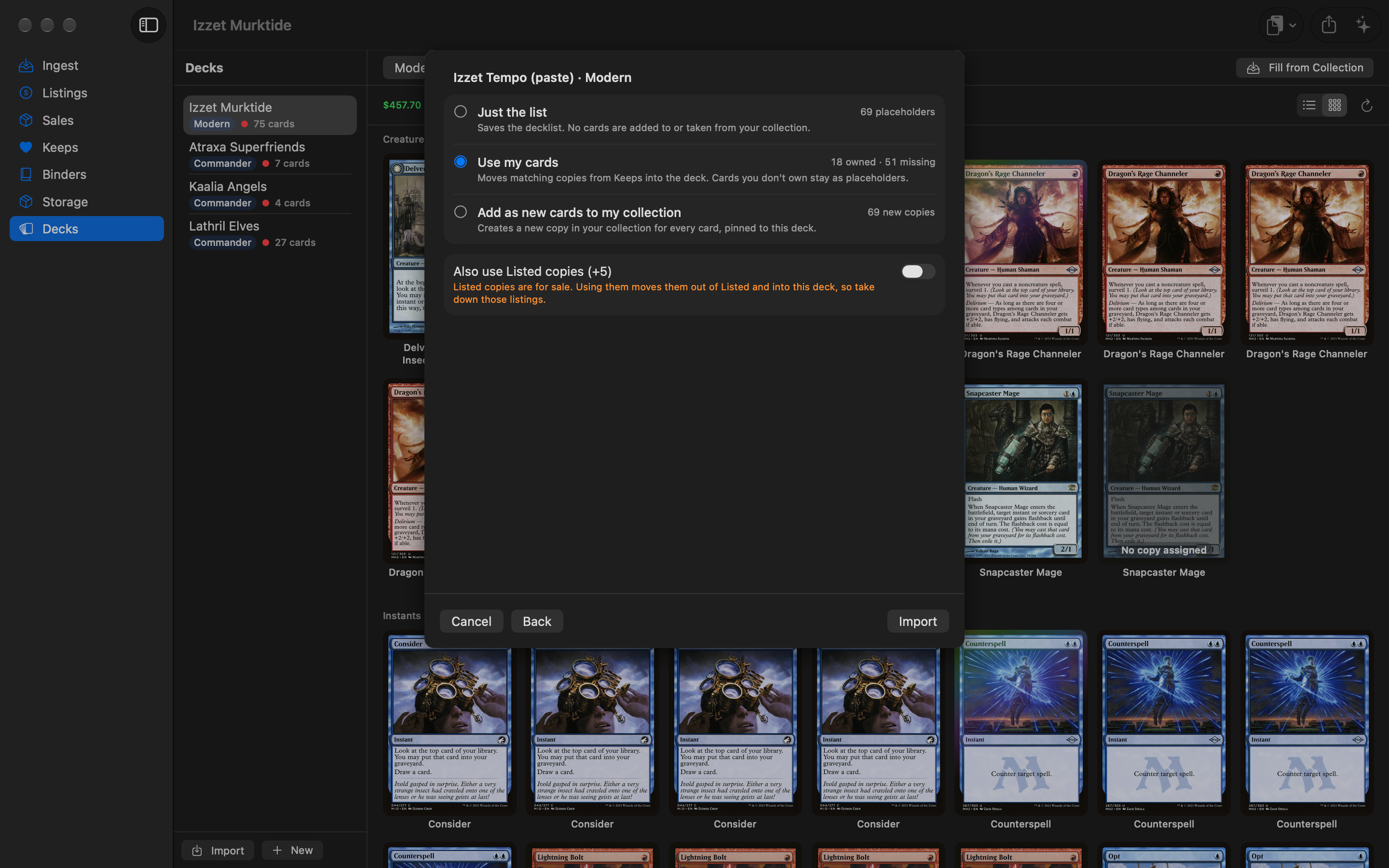
Choose how the deck uses your collection
| Option | What happens |
|---|---|
| Just the list | Saves the decklist. No cards are added to or taken from your collection; every card is a placeholder with no copy. |
| Use my cards (default) | Moves matching copies from Keeps into the deck, preferring the finish the list asks for (an etched line takes an etched copy). Cards you don't own stay as placeholders. The preview says how many are owned and missing, for example 92 owned · 8 missing. Tick Also use Listed copies to use copies you're selling too — they leave Listed, so take those listings down. |
| Add as new cards to my collection | Creates a new copy in your collection for every card, in this deck, with the Condition of the new copies you choose (Lightly Played by default). |
Maybeboard cards are always saved as placeholders. Cards Scryfall can't find are listed and aren't imported.
Fill the gaps later
When a deck has cards without a copy, a Fill from Collection button appears in the deck header. It shows how many cards you own and how many are still missing, and takes copies from Keeps: the same printing first, then any printing, with cheaper copies and copies that aren't in a binder first. Also use Listed copies works the same as at import. Click Fill. Use it after you open a pack or trade for the missing cards.
Which formats are checked? New
Pick a deck's format from the menu at the start of the deck header (or in the New Deck and Import sheets). Formats are free on every plan. Changing it saves right away.
| Format | What's checked |
|---|---|
| Commander | Exactly 100 cards including the commander, singleton, within the commander's color identity. No sideboard. |
| Standard, Pioneer, Modern, Legacy, Premodern | 60+ cards, 15-card sideboard, 4 copies. |
| Vintage | 60+ cards, 15-card sideboard, 4 copies; restricted cards 1 copy. |
| Pauper | 60+ commons, 15-card sideboard, 4 copies. |
| Limited | Draft or sealed: 40+ cards, no copy limit, basic lands free. |
| Freeform | No rules checked. |
Banned and not-legal cards come from Scryfall's legality data. Basic lands are exempt from copy limits, and cards whose text allows more copies (“A deck can have any number of cards named…”) are counted that way. Copies are counted by card name across all zones except the maybeboard. A deck imported with a format Magical Piles doesn't check is treated as Freeform.
The legality badge and problems list
Next to the format, the header shows the card count (99+1/100 for Commander, 58/60 · SB 15/15 for constructed formats) and a badge:
- Legal (green) — nothing wrong. It may add notes, such as Legal · 1 note.
- Legal · N warnings (orange) — legal, with something to check.
- N problems (red) — not legal yet.
- Freeform (gray) — nothing is checked.
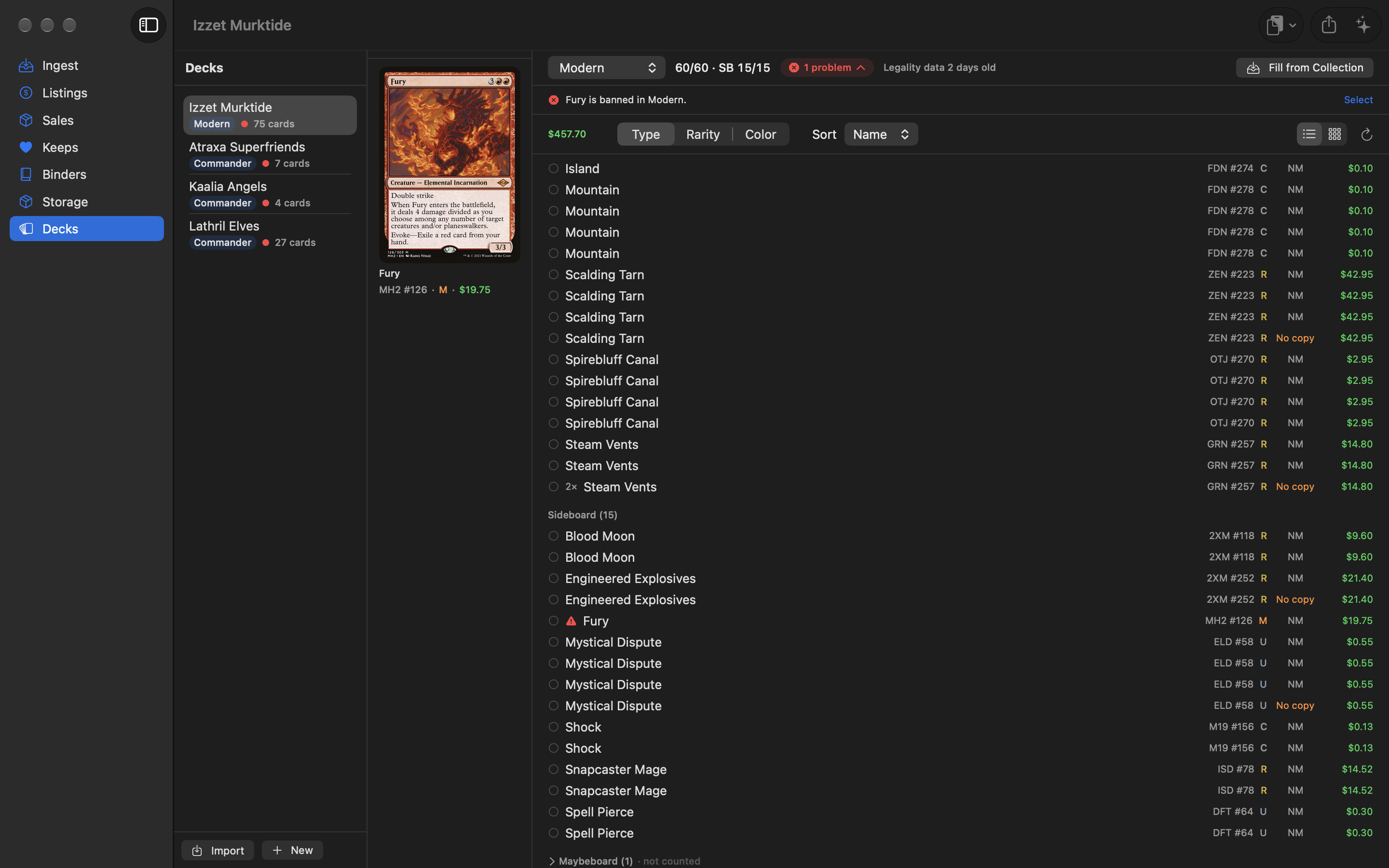
Click the badge to open the list of problems, such as Main deck has 58 cards; Modern needs at least 60. or 3 copies of Sol Ring (singleton). Click Select on a problem to select the cards it's about. Cards with a problem are marked in the decklist too. In the deck list on the left, a green or red dot next to each deck shows whether it's legal.
Legality data is downloaded from Scryfall and refreshed weekly (and when you open a deck whose data is a week old). The header says how old it is, for example Legality data from today. Cards whose data hasn't downloaded yet are noted as not checked.
In a Standard deck, a note lists cards printed in sets that rotate out of Standard on Feb 5, 2027. A reprint in a newer set stays legal. It's a note, so the deck still shows as Legal.
Zones: sideboard, companion, and maybeboard
A deck has up to five zones, listed in this order: Commander, Companion, the main deck (Mainboard), Sideboard, and Maybeboard. Right-click a card for Move to Mainboard, Move to Sideboard, Move to Companion, or Move to Maybeboard, or select several and use Zone… in the bar at the bottom.
- Outside Commander, a companion counts toward the 15-card sideboard. In Commander it sits outside the 100.
- The maybeboard is for cards you're considering. It's collapsed by default and marked not counted: it's left out of the card count, the value, and the legality check. Maybeboard cards never hold a physical copy, so moving a card there sends its copy back to Keeps.
How do I build a deck from cards I already own?
- Click New in the deck list. A deck called New Deck (format Commander) is created. Double-click it to rename it.
- Go to Keeps (or Listings), right-click the exact copy you want, and choose Add to Deck → your deck.
That copy moves into the Deck pile and leaves its storage slot, if it had one. You can also assign a copy to a deck from the Deck menu in the card editor; the pile changes to Deck automatically. A copy can only be in one deck at a time.
When you remove a card from a deck with Remove from Deck, the copy goes back to Keeps.
How do I edit a deck?
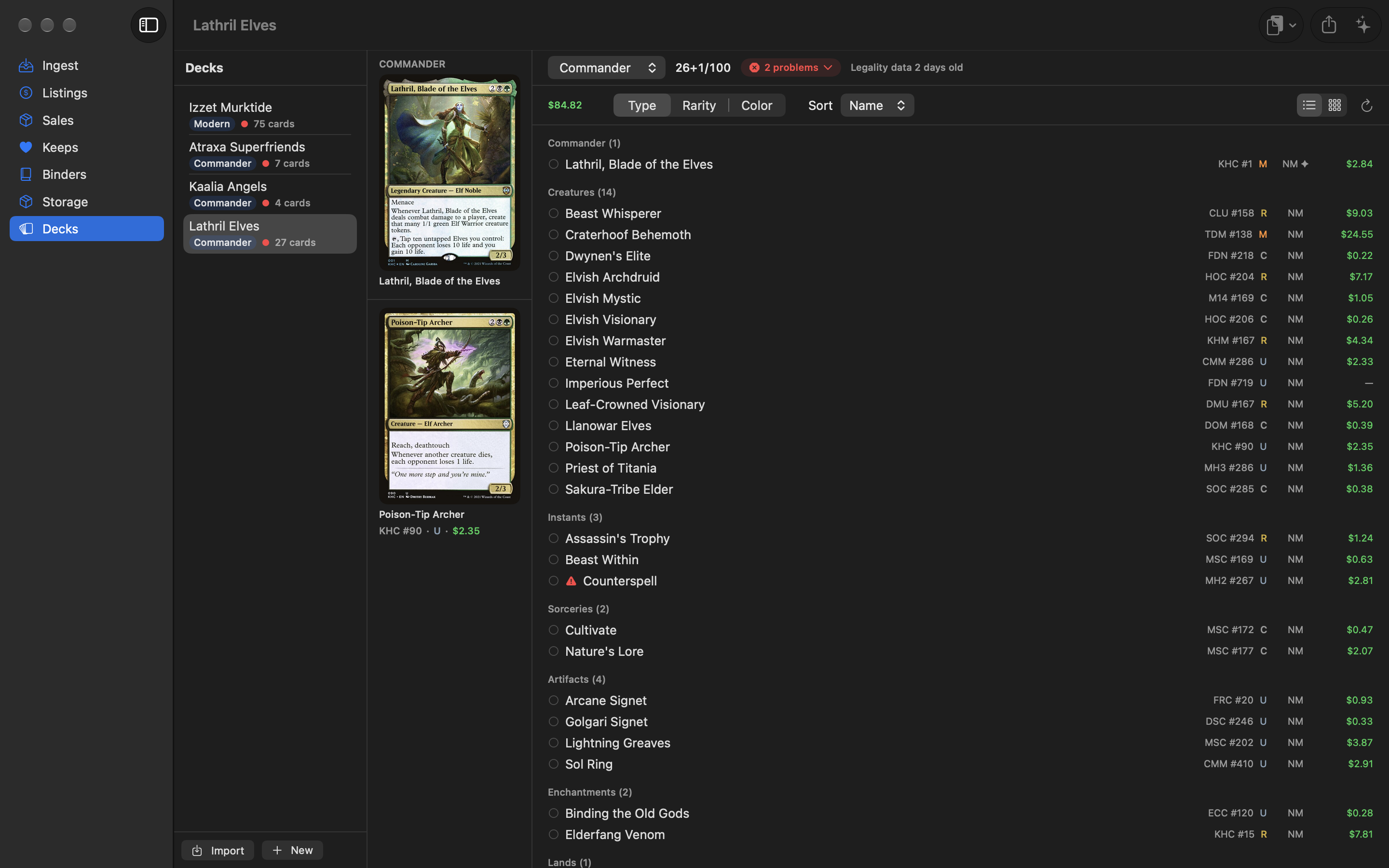
Select a deck to open it. In list view the commander is pinned at the top left, with a preview of the card you're hovering below it. The header shows the format, card count, and legality badge; the toolbar shows the value (maybeboard excluded) and lets you group by Type, Rarity, or Color and sort by Name, Mana Value, Price, Rarity, or Color. Commander and Companion are listed first; Sideboard and Maybeboard last.
Etched copies show ◈ in the condition column and non-English copies a language chip, as in Keeps; an etched copy is valued at Scryfall's etched price. Cards with a legality problem are marked: a red triangle for a problem (such as a card outside the commander's color identity), an orange mark for a warning. Hover it to see why.
“No copy” slots: a deck card that isn't backed by a physical card in your collection shows No copy in orange in the condition column, and in grid view a dimmed image with a No copy assigned label. Maybeboard cards show Maybe instead. Use Fill from Collection to fill them from your Keeps.
Right-click a card to
- Promote to Commander (formats with a commander) — the old commander moves to the main deck
- Move to 99 — turn the commander back into a regular card (Move to Mainboard in other formats)
- Move to Mainboard, Move to Sideboard, Move to Companion, Move to Maybeboard
- Remove from Deck — the copy goes back to Keeps
- Remove from Deck + Collection — deletes the copy
Change several cards at once
Click the circle at the start of each row to select cards. A bar appears at the bottom where you can move them to another Zone…, Move to… Keeps or Listed, Set Condition…, select All, Clear the selection, or Remove them from the deck.
Rename or delete a deck
Double-click the deck's name in the list to rename it, or right-click for Rename and Delete. When deleting, choose:
- Deck Only — the deck is deleted and its copies go back to Keeps.
- Deck + Cards — the deck and exactly the copies in it are deleted from your collection (and from any binders). Other copies of the same cards aren't touched.
How do I see what changed in a deck?
Scroll to the bottom of the deck's list. The Changelog lists each card that was added or removed, newest first, with the time (“Today 7:42 PM”, “Yesterday…”, or a date). Adding a card from your collection or the AI Deck Advisor and removing a card are logged. The cards that came with a deck import aren't listed as individual adds.
How do I export a deck to Arena, MTGO, or Moxfield? New
Open the deck and click the Export decklist button in the toolbar (the clipboard icon). Copy the list, or save it as a file:
| Choice | What you get |
|---|---|
| Copy as Arena / Save as Arena… | An Arena import: the deck name, then Commander, Companion, Deck, and Sideboard, as 1 Card Name (SET) 123. No maybeboard. |
| Copy as MTGO (.txt) / Save as MTGO (.txt)… | The main deck, a blank line, then the sideboard (the commander and companion go in the sideboard). No maybeboard. |
| Save as MTGO (.dek)… | An MTGO .dek file with the same cards. |
| Copy as Moxfield / Save as Moxfield… | Commander, Companion, Deck, Sideboard, and Maybeboard, with *F* after foils and *E* after etched foils. |
| Copy as Plain Text / Save as Plain Text… | Just 1 Card Name lines, under zone headings. |
Exporting is free on every plan.
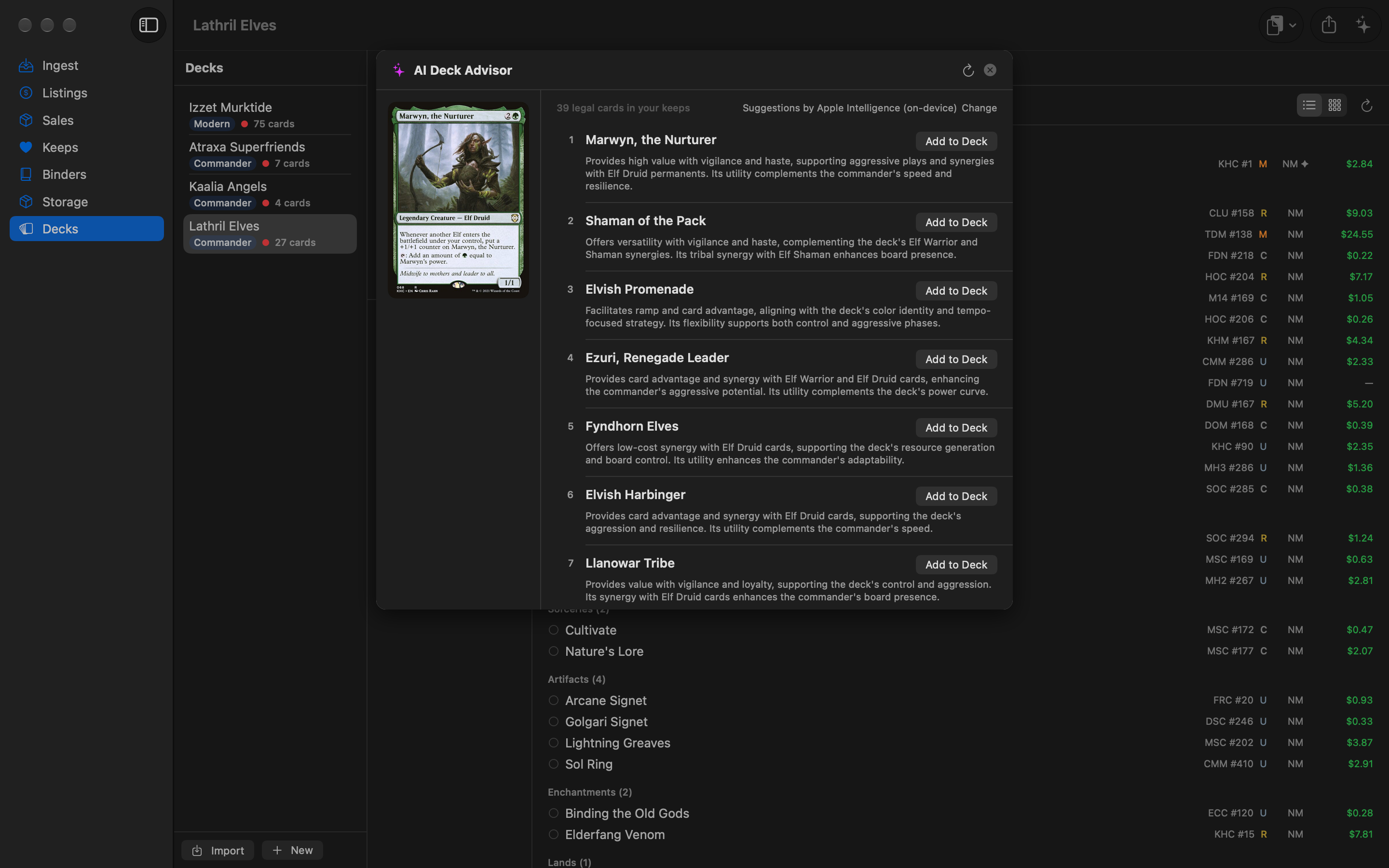
How do I get card suggestions from the AI Deck Advisor? New Collector
The Deck Advisor recommends cards from your own Keeps for the open deck. You choose which AI does the work: a cloud provider with your own API key, a model running on your own computer, or Apple Intelligence on your Mac.
- Open a deck and click the ✨ (AI Deck Advisor) button in the toolbar. Without Collector it shows a lock instead.
- The first time, the sheet asks you to Choose an AI provider for the Deck Advisor. Pick one, add a key if it needs one (see Settings ▸ AI Deck Advisor), and click Continue. You can change it later in Settings.
- Click Analyze Deck.
- You get up to ten candidates, ranked, each with a short reason. Click Add to Deck next to any of them. Use the Re-analyze button to run it again.
The line at the top says which provider and model is answering (for example Suggestions by Anthropic Claude · claude-sonnet-5), with a Change link to Settings.
Which providers can I use?
| Provider | What you need |
|---|---|
| Anthropic Claude, OpenAI, xAI Grok, Google Gemini, OpenRouter, Mistral, DeepSeek | Your own API key from that company. Requests are billed to your account there, separately from Magical Piles. |
| Ollama (local), LM Studio (local) | The server running on your Mac or network, with a model loaded. No key. |
| Custom (OpenAI-compatible) | Any endpoint that speaks the OpenAI chat API: its base URL, and a key if it needs one. |
| Apple Intelligence (on-device) | A Mac that supports Apple Intelligence, with it turned on in System Settings. Free, and the request never leaves your Mac. The on-device model has a small context, so for big decks and big collections it only sees the most relevant cards. |
What the advisor looks at
- Candidates are cards in your Keeps that aren't already in this deck and fit the commander's color identity (when the deck has a commander).
- It also uses public EDHREC data about high-synergy cards for your commander, when EDHREC has a page for it.
- It's written with Commander decks in mind. It runs on decks in other formats too, but its advice still leans toward Commander.
What is sent
The deck list and the names of eligible Keeps cards: the deck's commander (or name), color identity, and format; the deck's card names and type lines; the names, type lines, and mana values of the candidate cards; and EDHREC's suggestions. Prices, quantities, and your other data aren't sent. The request goes to the provider you chose; with Ollama or LM Studio it goes to the server at the URL you set; with Apple Intelligence it never leaves your Mac. (With any provider, the app itself also looks up your commander on EDHREC and card images on Scryfall.)
A recommendation marked Not in keeps is a card the AI named that isn't in your Keeps, so it can't be added from here.
Sharing & accounts
Share any deck or binder as a public web page on magicalpiles.com. You only need an account to share.
How do I share a deck or binder?
- Open the deck or binder and click the Share button in the toolbar.
- The first time, you're asked to Sign in with Apple.
- The deck or binder is uploaded and the macOS share menu opens with its link, so you can copy it or send it.
Deck links look like magicalpiles.com/d/… and binder links like magicalpiles.com/b/….
How do I update a shared link?
Click Share again after making changes (the button's tooltip changes to Update shared deck or Update shared binder). The same link is updated — you don't get a new one.
What do people see?
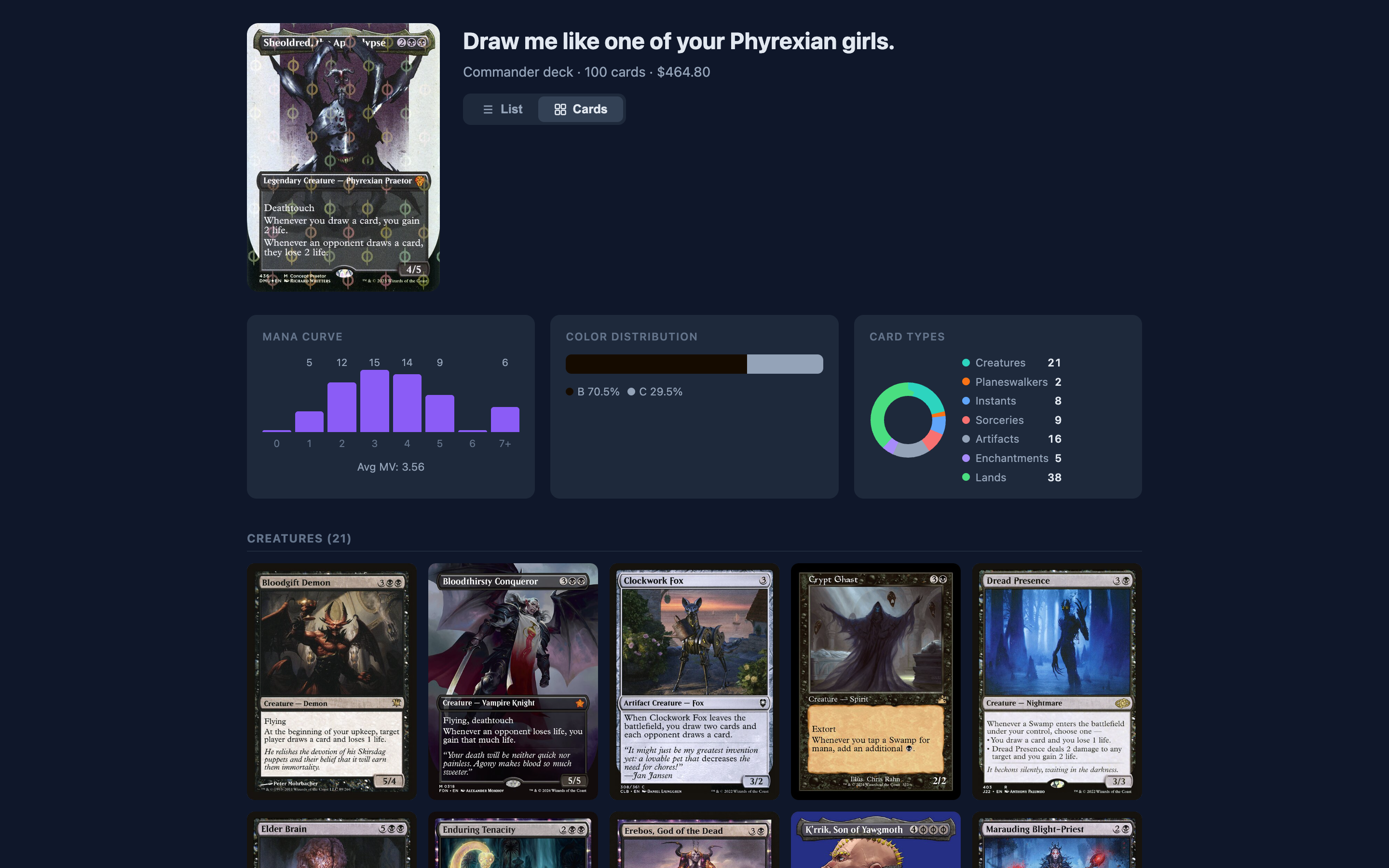
- Deck pages: the commander's image, format, card count, and value; mana curve, color distribution, and card-type charts; and the decklist grouped by type, as card images or a list (viewers can switch).
- Binder pages: the binder's name, card count, and value, with its cards as a list or grid including prices.
- Your profile page: one page listing all of your shared decks and binders. Click the person icon in the app's toolbar to open it.
Shared pages include each card's name, set, collector number, rarity, type, quantity, foil, condition, price, and image. Purchase prices and notes aren't shared.
How do I stop sharing something?
Click the My Shares button in the toolbar (it appears once you're signed in). It lists everything you've shared, with a button to copy each link and a Remove from web (trash) button. Removed pages are deleted from the server right away.
What does signing in share about me?
Sign in with Apple gives Magical Piles an anonymous user ID. The app doesn't request your name or email. Your session is stored in your Mac's Keychain. See the privacy policy for details.
Export & backups New Free
Your collection is yours. Export All Data saves everything Magical Piles knows in open formats that any spreadsheet or other collection app can read. It's free on every plan, is never locked, and keeps working after a trial ends.
How do I export all my data?
- Choose File → Export All Data… (⌥ ⌘ E), or click Export All Data… in Settings → Your Data.
- Pick where to save the zip. It's named like
Magical Piles Export 2026-09-27.zip. - Leave Include archived packing slips (contain buyer names and addresses) unticked unless you need them. It's off by default so your buyers' addresses stay out of the export.
- Click Export. A small window shows progress (you can Cancel), then Export complete with the number of copies and files, and a Show in Finder button.
If an export doesn't finish, nothing is saved and your data in the app is unchanged. Passwords, API keys, access tokens, and sign-in tokens are never included.
What's in the zip?
| File | What it holds |
|---|---|
README.txt | A plain-English guide to every file and column, with row counts |
inventory.csv | One row per physical copy you have or had, including sold copies: printing, finish (nonfoil, foil, or etched), language, condition, pile, listing channel (TCGplayer or Mana Pool), deck and deck role, binders, storage location, prices (purchase, list, market, and Scryfall), import batch, and sale details. Readable on its own. |
decks.csv, deck_cards.csv, deck_changelog.csv | Your decks with their format, every deck card with its zone (Commander, Mainboard, Sideboard, Companion, or Maybeboard, including cards with no copy), and the deck changelog |
binders.csv, binder_cards.csv | Your binders and what's in them |
storage_locations.csv, storage_set_rules.csv | Your storage locations, and the set rules |
sales_orders.csv, sales_lines.csv | Recorded orders and one row per copy sold. Each order has its channel (tcgplayer, manapool, or manual), fees and net, and notes; Mana Pool orders add Fees Are Actual, Marketplace Order ID, Shipping Paid, Net Payout, Requires Tracking, Fulfillment Status, Fulfillment Updated At, Tracking Carrier, and Tracking URL. Pre-Piles is yes for orders placed before your inventory import for that channel (see Pre-Piles orders). Buyer addresses are never stored, so they aren't here. |
listing_sync.csv New | What you last uploaded to TCGplayer or pushed to Mana Pool: one row per marketplace and SKU, with the quantity and price sent. It's what Changes since last upload compares against. |
import_batches.csv | Every file you've imported |
manabox_collection.csv | Everything you still own, in ManaBox's CSV layout |
moxfield_collection.csv | Everything you still own, in Moxfield's collection CSV layout |
tcgplayer_listed.csv | The copies Listed on TCGplayer, in TCGplayer's Seller Portal inventory format, one row per SKU, with exact quantities |
manapool_listed.csv New | The copies Listed on Mana Pool, in the ManaBox layout that Mana Pool's CSV import reads, with exact quantities and your list price |
decks/ | One plain-text list per deck (1 Card Name (SET) 123), under Commander, Companion, Mainboard, Sideboard, and Maybeboard headings (empty ones are left out) |
database/magical_piles.sqlite | A complete copy of the app's database, taken at the same moment as the CSV files. It also holds the card data the app keeps from Scryfall (printings, prices, and format legalities), which isn't repeated in the CSVs. |
packing_slips/ | Only if you ticked the checkbox: the archived packing-slip PDFs. They contain buyer names and addresses, so keep them private. |
Every CSV is UTF-8 with a header row and standard quoting. Dates are ISO 8601, and prices are plain US-dollar numbers such as 12.50 (an empty price means unknown, not zero). In Excel, open the files with Data → From Text/CSV and pick UTF-8 so names like Æther Vial show correctly; Numbers and Google Sheets detect it by themselves.
How do I move my collection to another app?
The three collection files cover every card you still own (Keeps, Deck, and Listed, but not Sold), with identical copies combined into one row with a quantity:
- ManaBox: import
manabox_collection.csvwith ManaBox's CSV import, or with any app that accepts ManaBox files (choose ManaBox when it asks for the format). It includes the exact printing (Scryfall ID), finish (including etched), language, condition, quantity, and purchase price. Magical Piles' own Ingest reads it back too. - Moxfield: import
moxfield_collection.csvwith Moxfield's collection CSV import. It includes finish and language. - TCGplayer:
tcgplayer_listed.csvuses TCGplayer's inventory format with exact quantities: Total Quantity is how many copies are Listed on TCGplayer here and Add to Quantity is 0, so uploading it sets TCGplayer to match (and uploading it twice changes nothing). Copies without a known SKU have a blank TCGplayer Id; list those by hand. - Mana Pool: import
manapool_listed.csvon Mana Pool (Seller › Inventory › Import, choose ManaBox). It uses Mana Pool's own reading of the ManaBox condition words, so usemanabox_collection.csv, not this file, to move your collection into ManaBox. - Decks: most deck sites and apps accept the files in
decks/when you paste a deck list.
How do backups work?
Open Settings → Your Data:
- Back Up Now saves a copy of the database straight away (Backed up.).
- Magical Piles also backs up automatically before an app update changes the database.
- The list below shows your newest backups, each with its date, whether it was Backed up by you or Automatic, before an update, and its size. Click Reveal in Finder to find one.
- The last 5 automatic backups and the last 5 of your own are kept, separately, so your own backups never push out the automatic ones.
- Show Data Folder in Finder opens the folder your data lives in (see Where is my data stored?).
If you ever need to restore a backup, quit Magical Piles first.
Settings
Open Magical Piles → Settings… (⌘ ,). The groups are: Your Data (export and backups), Purchases (your plan), AI Deck Advisor, Sales — TCGplayer Fees, Shipping — TCGTracking, and Mana Pool (see Connect Mana Pool).
How do I set up the AI Deck Advisor? New
Don't want AI at all? Switch off Show AI features at the top of the AI section of Settings. The advisor button disappears from every deck, the provider settings are hidden, and nothing is sent to any AI service. Your provider choice and keys are kept if you turn it back on.
With Show AI features on (the default), under AI Deck Advisor:
- Choose a Provider: Anthropic Claude, OpenAI, xAI Grok, Google Gemini, OpenRouter, Mistral, DeepSeek, Ollama (local), LM Studio (local), Custom (OpenAI-compatible), or Apple Intelligence (on-device).
- For a cloud provider, paste your API key from that company and click Save Key (a green Saved confirms it). Each provider has its own key, so you can switch without re-entering them. For Ollama, LM Studio, or Custom, check the Base URL (Ollama and LM Studio default to their usual addresses on your Mac); Custom takes an optional key.
- Pick a Model: type its ID or use Choose to pick from the provider's live model list (the refresh button reloads it). Apple Intelligence has no model to pick; it says whether the on-device model is available on this Mac.
- Click Test Connection. You should see, for example, Connected to OpenAI — gpt-… responded. If not, the message says what's wrong (a rejected key, an unknown model, a local server that isn't running).
Keys are stored in your Mac's Keychain, separately for each provider, and sent only to that provider. Clear removes one. A note under the settings says exactly what's sent where: for a cloud provider, Sends the deck list and eligible Keeps card names to that company using your API key; for Ollama and LM Studio, to the local server at the URL you set; for Apple Intelligence, Runs entirely on this Mac. Nothing is sent anywhere.
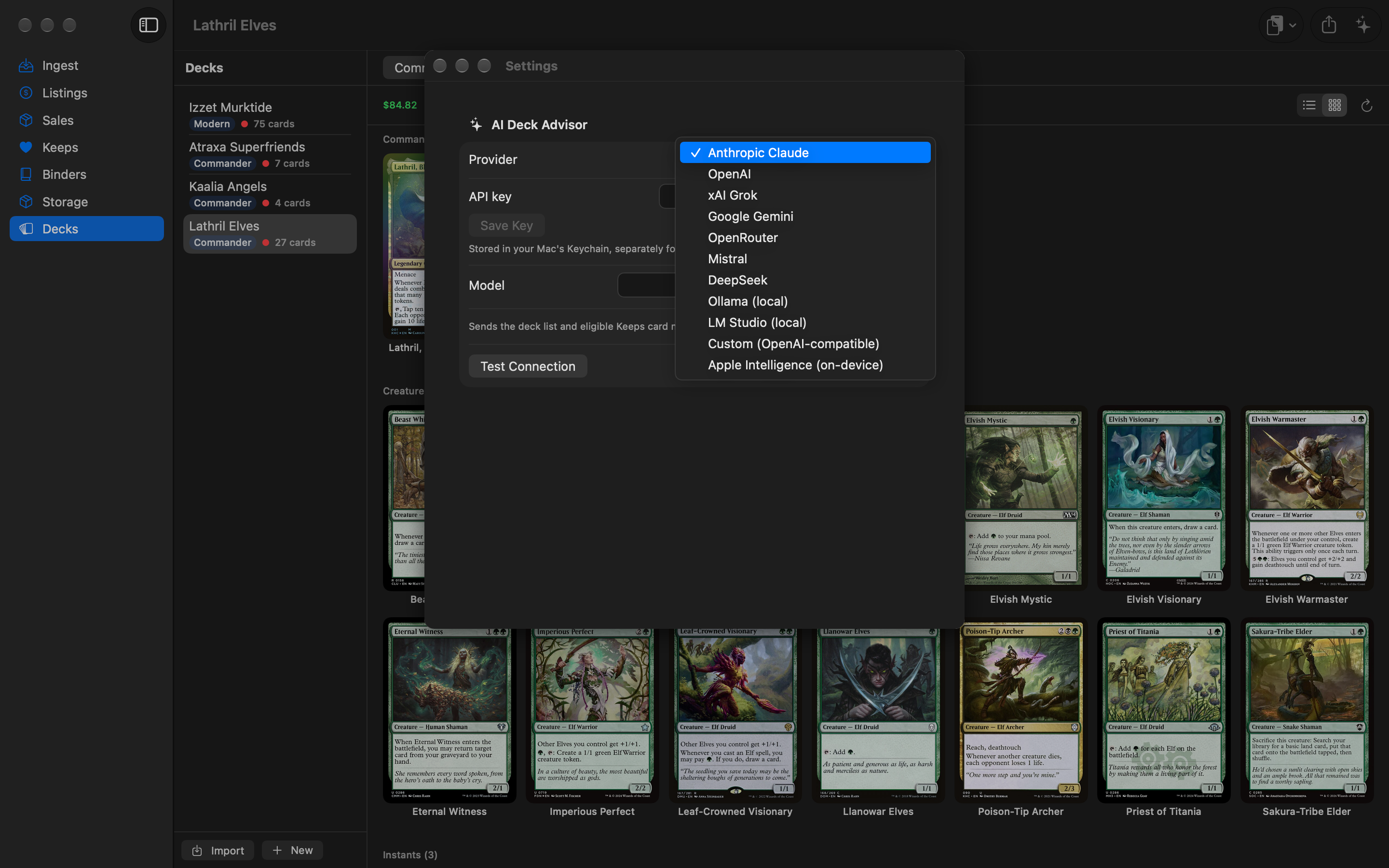
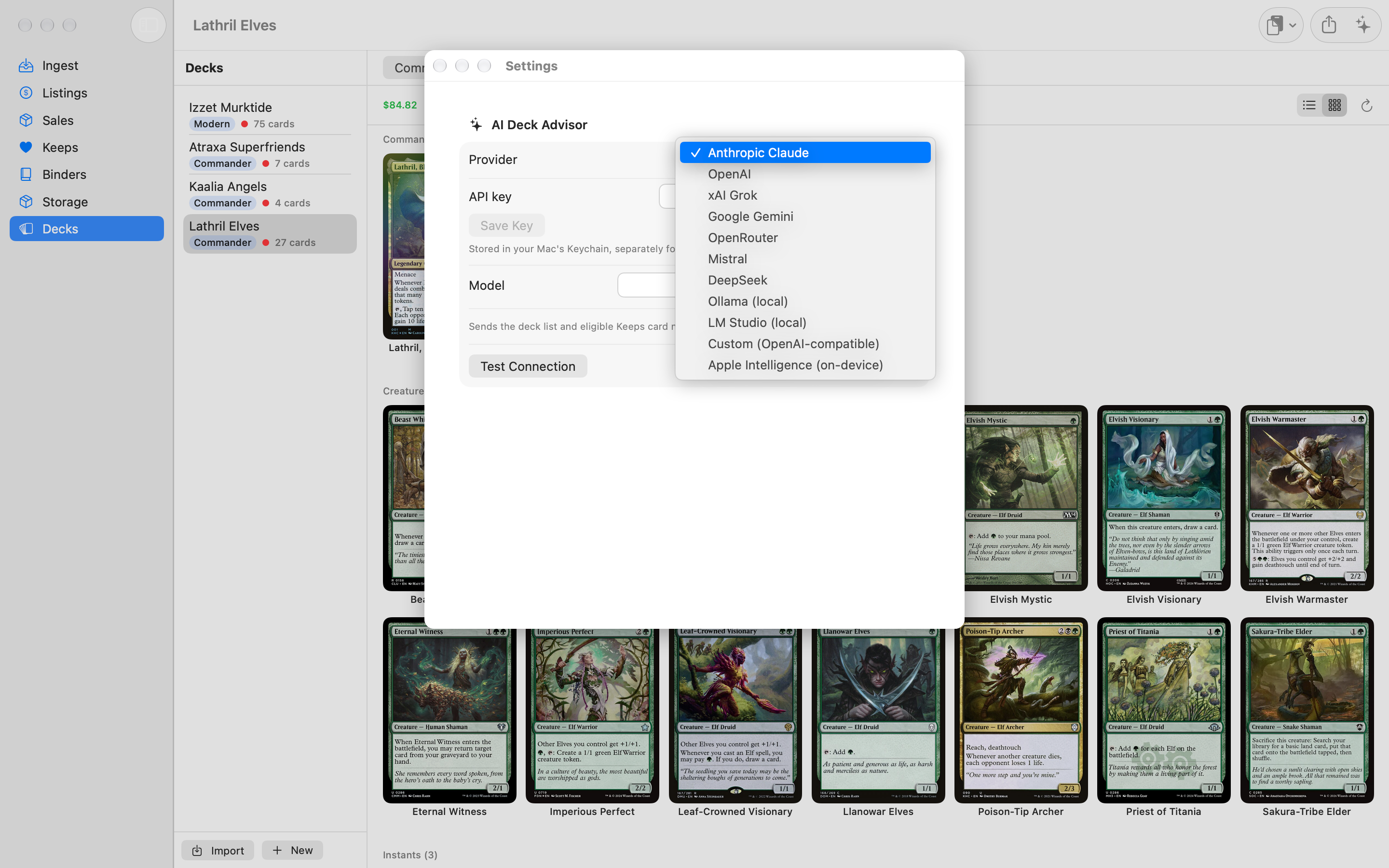
If you added an Anthropic key in an earlier version, it's kept and Anthropic Claude is selected for you.
How do I set TCGplayer fee rates for Sales? New
Under Sales — TCGplayer Fees you can edit the rates used to estimate fees on each order:
- Commission (a percentage) and Commission cap per order
- Payment processing (a percentage) and Processing fixed fee per order
The estimate is the commission on the order's card subtotal (up to the cap), plus processing on the subtotal plus the fixed fee. Rates are saved with each order when you process it, so changing them later doesn't change past orders. Click Reset to Defaults to restore the built-in rates.
TCGplayer charges processing on the whole order, including shipping and tax, which the packing slip doesn't show. Check your TCGplayer payouts for exact fees.
How do I set up TCGTracking shipping? New Seller
Under Shipping — TCGTracking, pick a Mode: Off, Hand-off (free), or API (paid per label). What each does is explained in Shipping with TCGTracking. Hand-off needs no setup. For API mode:
- In your TCGTracking account (tcgtracking.com), get your shipper number and an API key. TCGTracking requires a payment method on file for an API key.
- Enter them in Shipper number and API key, and click Save Credentials. A green Saved confirms it. Both are stored in your Mac's Keychain; Clear removes them.
- Choose a Default envelope or label size (#10 envelope by default; other envelope sizes, 8.5×11 window sheets, and 6×4, 4×2, and 3.5×1.1 labels are available).
- Optionally turn on Insure labels by default (max $50 value). It's off by default.
- Print label automatically after marking sold is on by default. Turn it off to print later with Reprint Label.
The Dashboard link opens your TCGTracking dashboard. Magical Piles isn't affiliated with TCGTracking; its pricing and terms are set by TCGTracking.
Plans & trials New
Magical Piles is free to download and use. Two optional upgrades, Hardcore Player & Collector and Seller, are one-time purchases in the Mac App Store — no subscription. Current prices are on the pricing page.
What does each plan unlock?
| Plan | What it unlocks |
|---|---|
| Casual Player Free | Ingest with every import format and the review, Keeps, Listings, Binders, sharing decks and binders to magicalpiles.com, up to 3 decks with every format and legality check, deck import (all three modes) and export to Arena, MTGO, and Moxfield, TCGplayer uploads, recording a sale by hand, and Export All Data and backups. |
| Hardcore Player & Collector Collector One-time purchase | Everything in Casual Player, plus unlimited decks, Storage & chaos sorting (locations, filing, pull lists, set rules and Assign by Set), and the AI Deck Advisor. The Deck Advisor uses the AI provider you choose: your own API key for a cloud provider, a local model, or Apple Intelligence on your Mac. |
| Seller Seller One-time purchase | Everything in Collector, plus packing-slip import and Mark as Sold, profit after TCGplayer fees, TCGTracking shipping (hand-off and API), Import TCGplayer Inventory with reconcile, the pull list in the packing-slip review, and Mana Pool (listing copies there, pushing, inventory import, orders, and Mark Shipped). If you own Collector, you can upgrade to Seller for the difference instead of buying it outright. |
Where do I see plans and buy an upgrade?
Everything happens in the Plans & Pricing window. Open it from any of these:
- the app menu: Magical Piles → Plans & Pricing…
- Settings → Purchases → Plans & Pricing… (this group also shows your current plan)
- any locked action: buttons and menu items that need an upgrade stay visible, with a lock icon. Click one and Plans & Pricing opens with a note at the top saying which plan includes it, such as “Storage & chaos sorting is part of Hardcore Player & Collector.”
- the trial chip at the bottom of the sidebar, during a trial
The window shows the three plans side by side, each with its price in your currency from the App Store, what it includes, and its buttons: Start 14-day free trial, Buy price, or, if you own Collector, Upgrade for price in the Seller column. Plans you own say Owned; your current free plan says Your plan. The line under the title says what you're on, for example You're on: Casual Player (free).
If a purchase needs approval (for example Ask to Buy), you'll see “Purchase pending approval”; it unlocks automatically once approved.
How do I start a free trial?
- Open Plans & Pricing.
- In the Collector or Seller column, click Start 14-day free trial. The trial is free through the App Store, with no automatic charge.
- That plan's features unlock right away. A Seller trial unlocks the Collector features too.
Each upgrade has one trial. It lasts 14 days from the moment you start it, and reinstalling the app doesn't restart it. Nothing is charged when it ends; to keep the features, buy the plan once at the price shown.
During a trial, an orange chip at the bottom of the sidebar counts down, for example Seller trial · 9 days left. Click it to open Plans & Pricing. The Plans & Pricing window shows the same count in that plan's column.
How do I restore a purchase on another Mac?
- Sign in to the Mac App Store with the Apple Account you bought the upgrade with.
- In Magical Piles, click Restore Purchases at the bottom of the Plans & Pricing window, or in Settings → Purchases.
- You'll see Purchases restored. and your upgrades unlock again. You don't pay twice. (No purchases found for this Apple Account means you're signed in with a different account.)
What happens when a trial ends?
Nothing you recorded is locked away or deleted. These always work, on every plan, whether or not you ever bought anything:
- Viewing everything: decks, storage locations and location codes, sales history, tracking numbers, and profit
- Exporting with Export All Data, and backups
- Deleting your own records, such as a deck, binder, or storage location
- Editing decks you already have, including decks beyond the free three
- Clearing a storage location from cards (Clear Location)
- Reverting an order (Revert Order…)
What locks again until you buy the plan is creating or changing things with its features:
- Collector creating or importing a 4th deck; creating, editing, or filing into storage locations (including Stored In in the card editor, filing at finalize, and Assign by Set); pull lists; and the AI Deck Advisor
- Seller importing packing slips and Mark as Sold; the pull list in the packing-slip review; TCGTracking labels, hand-off, and tracking refresh; Import TCGplayer Inventory; and moving copies to Mana Pool, pushing to it, importing its inventory, checking for its orders, and Mark Shipped. (Moving copies back to TCGplayer, saving a Mana Pool CSV, and recording or reverting sales stay free.)
For example, if your Collector trial has ended, Finalize & Save in Ingest still saves your cards; they just aren't filed into a location.
Export All Data is free on every plan, forever. It saves a zip with CSVs, ManaBox-, Moxfield-, TCGplayer-, and Mana Pool-format files, your decklists, and the raw database. Your collection is stored on your Mac.
Troubleshooting & FAQ
“Unrecognized CSV format” when I import a file
Magical Piles identifies the format from column names in the first row. Make sure you're importing the app's own CSV export, unedited, and that it's one of the supported formats. If you only have a list of names, use Paste List. The file picker only shows .csv files.
Some cards were skipped during import
Those rows couldn't be matched to a card on Scryfall — usually because of a misspelled name or an unusual set code. Add them with Search & Add.
My cards are all under “Other” when grouped by type, or colors are missing
Some imports (including ManaBox) don't include card types or colors. Click the refresh button (↻, Refresh card data from Scryfall) in Keeps, Listings, a binder, or a deck.
Prices show “—”
No live price has been loaded for that card yet, or Scryfall doesn't have one. In an Ingest review click Fetch Live Prices; elsewhere use the refresh button. The rounded price uses your purchase price and floor until live prices are loaded.
The TCGplayer Id column is blank for some rows
The bundled SKU database had no match for that printing, finish, condition, and language. Etched and non-English copies have none yet. Those copies are left out of the upload file and listed in the upload sheet; list them by hand. See How SKU lookup works.
My quantities on TCGplayer doubled New
That happens when a file with Add to Quantity filled in is uploaded twice, or lists cards TCGplayer already had. Run Import TCGplayer Inventory with a fresh export, fix any surplus, then upload with Set exact quantities. It sets each card to exactly the number Listed here, so it corrects the doubled counts, and uploading it again is harmless.
A Mana Pool push skipped some cards New
The result says why. Cards with no list or market price are skipped if they're new to Mana Pool (set one with Set List Price…), and cards in a language Mana Pool doesn't list can't go there. Skipped rows stay in the next push. For a 401 error, check the email and token in Settings ▸ Mana Pool.
A packing-slip line didn't find a match New
Only Listed copies are matched automatically. If the card is in Keeps or a deck, pick it from the row's menu. If the badge is Not Found, there's no unsold copy with that name — the line can still be recorded without changing your inventory.
I imported a packing slip I'd already imported New
Orders already processed are skipped automatically, so nothing is recorded twice. If an order was recorded wrongly, right-click it in Sales, choose Revert Order…, and import the slip again.
“Couldn't Mark as Sold” New
A copy chosen in the review was changed or sold elsewhere before you confirmed. Close the review and import the slip again to get fresh matches.
A packing-slip line wasn't matched to my foil (or non-foil) copy New
That's on purpose: a copy in the other finish is never picked automatically. The row is marked Ambiguous and the copy is at the top of the menu. If that's what you shipped, pick it.
A TCGTracking label failed New
Hover the order's Shipping cell to see the error. Check your shipper number and API key in Settings, then right-click the order and choose Retry Label. The sale itself is already saved. If you get “The original packing slip PDF isn't in the Packing Slips folder any more,” the archived slip was deleted, so the address can't be read again; create that label on tcgtracking.com instead.
“Not enough room” when deleting or filing into a location New
The target location has a capacity and a number of rows, and the cards don't all fit. Raise its capacity or number of rows with Edit…, pick a different location, or choose Unassign them.
Where is my data stored? Are there backups? New
Magical Piles is a sandboxed Mac app, so its data lives in the app's own data folder:
~/Library/Containers/R.Robinson.Magical-Piles/Data/Library/Application Support/Magical Piles/The quickest way there is Settings → Your Data → Show Data Folder in Finder. (Or, in Finder, choose Go → Go to Folder… and paste the path.) Inside you'll find:
magical_piles.sqlite— your collection, decks, binders, storage, and salesBackups/— copies of the database. Automatic ones, made before an app update upgrades your database, are named likemagical_piles-20260927-091500.sqlite; ones you make with Back Up Now end in-manual. The last 5 of each kind are kept.Packing Slips/— copies of the packing slip PDFs from orders you've marked sold
If a backup can't be written, the app still starts. If you ever need to restore one, quit Magical Piles first. To take everything with you in open formats, use Export All Data.
A button or menu item has a lock icon New
That action is part of an upgrade you don't have (or whose trial has ended). Click it to open Plans & Pricing, which says which plan includes it. You can start a free trial or buy the plan there. Anything you already recorded stays viewable and exportable; see When a trial ends.
Import TCGplayer Inventory stopped, or some rows are “Waiting on Scryfall” New
Card data is fetched from Scryfall as it's needed. If the fetch was cancelled or your connection dropped, what was fetched is saved; click Resume Fetching. Rows still waiting are left out of the counts, and importing now is safe: running the import again later adds only what's missing.
The AI Deck Advisor says I need an API key, or can't connect
Open Settings ▸ AI Deck Advisor (the advisor's Open Settings button takes you there), check the provider, key, and model, and click Test Connection. For Ollama or LM Studio, make sure the server is running and a model is loaded. For Apple Intelligence, it must be turned on in System Settings ▸ Apple Intelligence & Siri. Or pick a different provider with Change Provider….
The advisor suggests nothing useful
It only picks from cards in your Keeps that match the commander's color identity and aren't already in the deck. If your Keeps is small or the deck has no commander set, there's not much for it to choose from. Smaller models, including Apple's on-device model, give weaker suggestions than the large cloud models.
Clicking Share asks me to sign in
Sharing needs an account so you can update or remove your links later. Sign in with Apple once and the share continues.
Does Magical Piles work offline?
Your collection is stored on your Mac, so you can browse it without a connection. Anything that talks to Scryfall (matching imports, live prices, card images, refreshing card and legality data) needs internet, as do sharing, the AI Deck Advisor with a cloud provider (Apple Intelligence and a model on your own Mac work offline), Mana Pool, TCGTracking labels and tracking, fetching card data during Import TCGplayer Inventory, and buying, starting a trial, or restoring purchases. The TCGplayer SKU lookup, TCGplayer uploads, packing-slip import, storage, pull lists, deck export, and Export All Data work offline.
Keyboard shortcuts
Magical Piles has one shortcut of its own and uses the standard macOS ones:
| Keys | Action |
|---|---|
| ⌥ ⌘ E | Export All Data… (File menu) |
| ⌘ , | Open Settings |
| ⌘ W | Close the window |
| ⌘ M | Minimize |
| ⌘ H | Hide Magical Piles |
| ⌘ Q | Quit |
| Return | Finish renaming a deck or binder. In the New Deck sheet: Create. In the Review Packing Slips and Review Mana Pool Orders sheets: Mark as Sold. In the Mark Shipped sheet: Mark Shipped. In the File into Location sheet: File (then Done). In the storage location editor: Create / Save. In Import TCGplayer Inventory and Import Mana Pool Inventory: Import (or Record Mana Pool Quantities), then Done; in their Unresolved, Not Importable, and Surplus lists: Done. In Assign by Set: Assign. When an export finishes: Done (or OK) |
| Esc | In the Review Packing Slips sheet, the Mark Shipped sheet, the New Deck sheet, the File into Location sheet, the storage location editor, and the Delete location sheet: Cancel. In Import TCGplayer Inventory, Import Mana Pool Inventory, and Assign by Set: Close. While Export All Data is running: Cancel. In a pull list: Done |
Mouse shortcuts: double-click a card to edit it, double-click a deck or binder name to rename it, and ⌘-click cards in Keeps or Listings to select several for the Storage and Listing actions.